 Picture to Text guide
How to Scan a QR Code or Barcode on Mac (From Your Screen or an Image)
By Muhammad Shahid Khan · · 4 min read
Quick answer
Press Shift-Command-2 in Picture to Text and drag over the QR code or barcode on your screen, or drop an image or PDF that contains it into the app. Picture to Text detects the code and shows its content, such as a link or text, which you can open or copy with one click. No phone needed.
Picture to TextCopy Text from Images & PDFs · Free on the Mac App StoreDownload free →QR codes are designed for phones, but they keep turning up on your Mac: in a PDF ticket, a Wi-Fi sheet, an email, a slide in a video call, or a payment page. The usual workaround is to pick up your phone and point it at your own screen. There is an easier way.
I build Picture to Text - ExtractText, a free Mac OCR app that reads images, PDFs and any area of the screen on your Mac, and the screenshots here come from it. If you want to try it as you read, get Picture to Text on the Mac App Store.
How do I scan a QR code on my Mac screen?
- Open whatever contains the QR code.
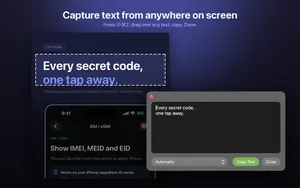
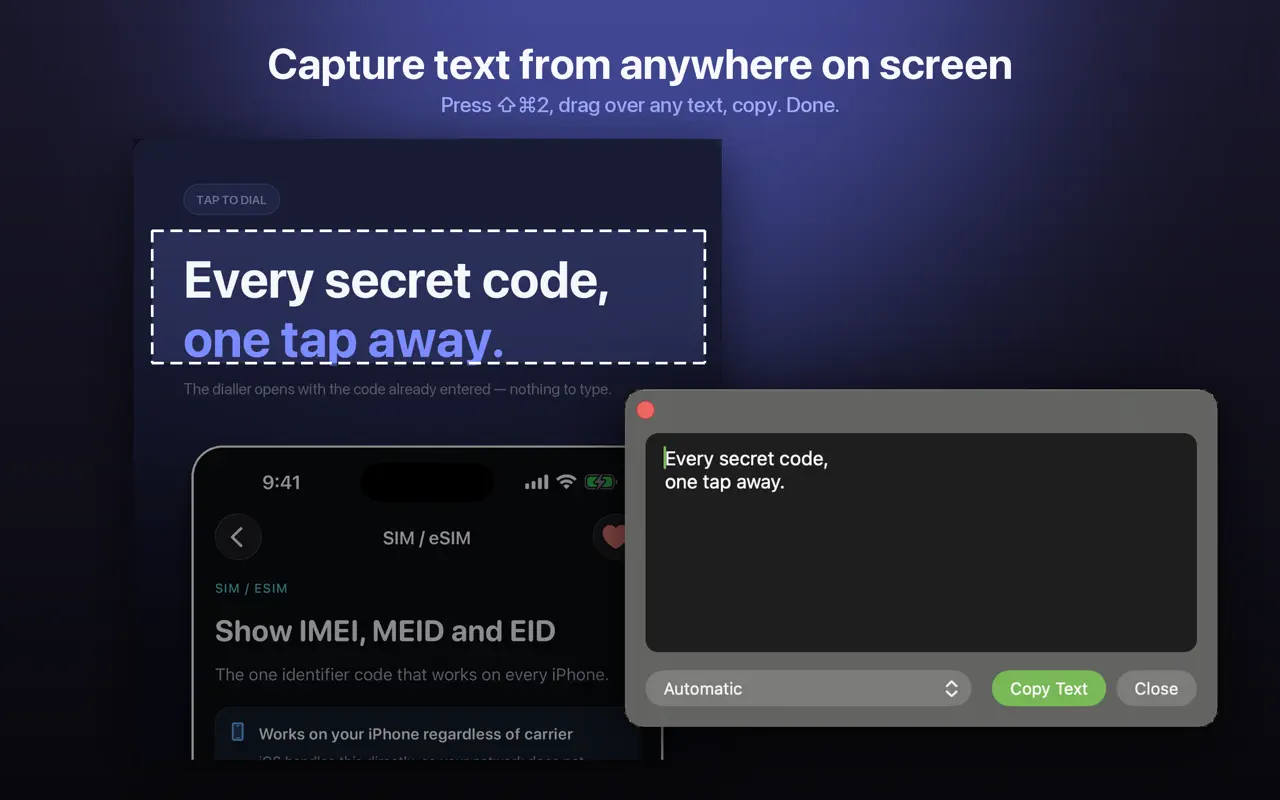
- Press Shift-Command-2 in Picture to Text, or start a capture from the menu bar icon.
- Drag a box around the code.
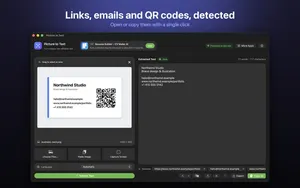
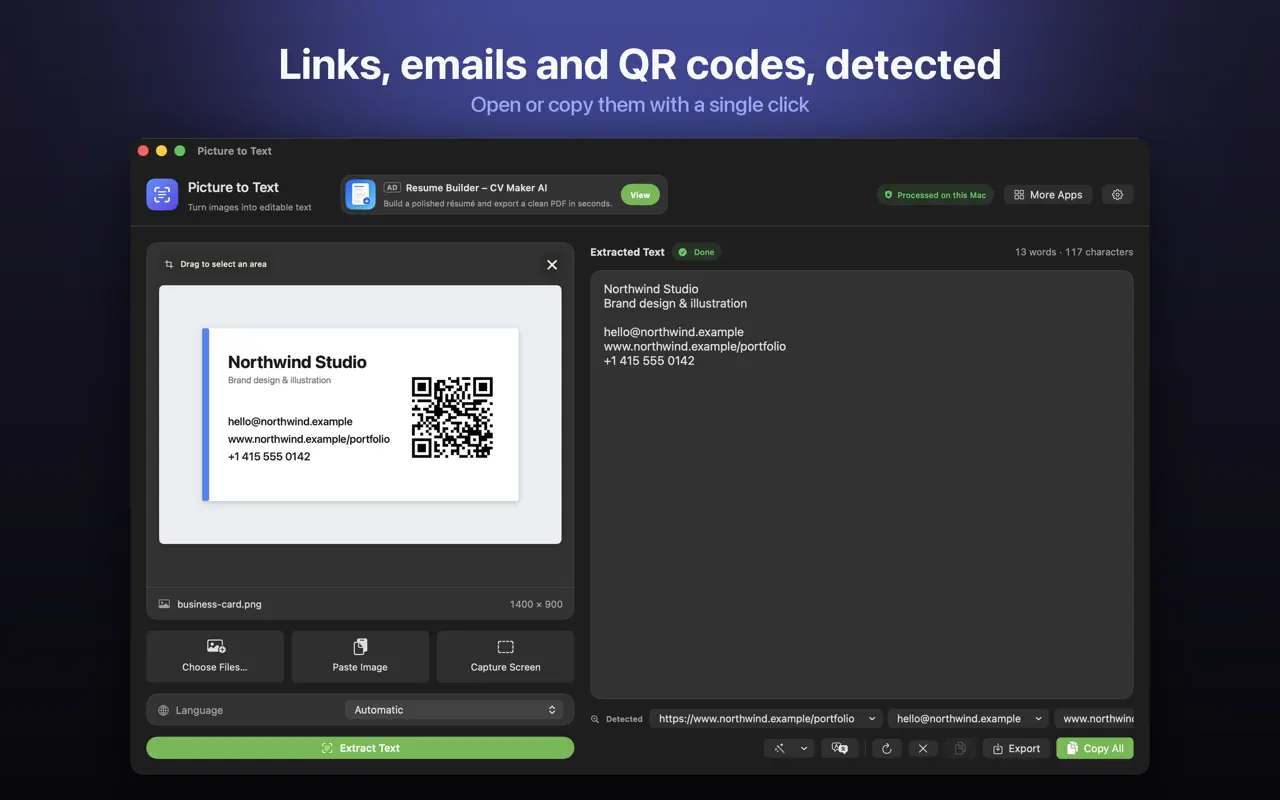
- Picture to Text shows what the code contains. Click to open or copy it.
How do I read a QR code from an image or PDF file?
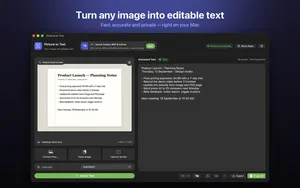
Drag the image or PDF from Finder into Picture to Text, or paste it from the clipboard. Any QR codes or barcodes are detected along with the text.
What kinds of codes can it read?
Picture to Text detects QR codes and barcodes. Typical content includes:
- Website links.
- Plain text, such as booking references.
- Email addresses and phone numbers.
- Product barcodes.
Is it safe to open a QR code link?
QR codes hide where a link goes, which is why scammers use them ("quishing"). Because Picture to Text shows you the content before anything opens, you get a chance to check it:
- Read the domain carefully. Look for misspellings such as
paypa1.comor extra words in the domain. - Be wary of codes in unexpected emails, especially ones asking you to log in or pay.
- Do not enter passwords on a page you reached from a QR code. Go to the site directly instead.
- Watch out for shortened links that hide the real destination.
Does it work offline?
Yes. Detection runs on your Mac with Apple's Vision framework. Nothing is uploaded and no account is needed. Of course, opening a link that a code contains needs internet.
More guides you may find useful:
- How to Extract Links, Emails and Phone Numbers From an Image on Mac
- How to Copy Text From a Video or Video Call on Mac (YouTube, Zoom, Teams)
- Live Text Not Working on Mac? How to Fix It (and Select Text in Any Image)
How Picture to Text helps
- Drop in images or PDFs, paste from the clipboard, or choose several files at once.
- Capture any area of the screen with Shift-Command-2 or from the menu bar.
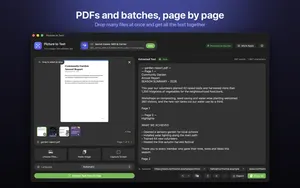
- Read multi-page scanned PDFs, with each page labelled in the result.
- 30+ languages, including Urdu, Persian, Pashto, Sindhi and Punjabi in beta.
- Clean Up, Detect and Translate: join broken lines, open links, emails, phone numbers, QR codes and barcodes, and translate on macOS 26 or later.
- Private: Apple's on-device Vision framework, no uploads, no account, no tracking, and it works offline.
Download Picture to Text free on the Mac App Store and copy text from anything on your screen.
More on screen capture: screenshot to text on Mac with Shift-Command-2.
How to scan a QR code on Mac: step by step
- Show the QR code. Open the email, PDF, web page or image that contains the QR code.
- Start a capture. Press Shift-Command-2 in Picture to Text, or use the menu bar icon.
- Select the code. Drag a box around the QR code or barcode.
- Check the result. Picture to Text shows the detected content. Read the link before opening it.
- Open or copy. Open the link or copy the content with one click.
Frequently asked questions
Can a Mac scan QR codes?
Yes. With Picture to Text, press Shift-Command-2 and drag over a QR code on screen, or drop in an image or PDF that contains one.
How do I scan a QR code on my screen without my phone?
Use Picture to Text’s screen capture: press Shift-Command-2, drag around the code, and open or copy the result.
Can I read a QR code from a screenshot on Mac?
Yes. Drag the screenshot into Picture to Text, or paste it from the clipboard.
Can Picture to Text read barcodes?
Yes. It detects barcodes as well as QR codes.
Is it safe to open QR code links?
Check the link first. Picture to Text shows the content before you open it, so you can check the domain for misspellings and avoid entering passwords on pages reached from a QR code.
What is quishing?
Phishing using QR codes, where a code leads to a fake website designed to steal logins or payments.
Can I copy the QR code content instead of opening it?
Yes. You can open or copy detected content with one click.
Does QR scanning work offline?
Yes. Detection runs on your Mac. Opening a link the code contains needs internet.
Can I scan a QR code in a PDF?
Yes. Drop the PDF into Picture to Text, or capture the code on screen with Shift-Command-2.
Does it need Screen Recording permission?
Only for screen capture. Reading codes from files you drop in does not need it.
Picture to TextDownload free