 Picture to Text guide
How to Convert an Image or Scanned PDF to a Word Document on Mac
By Muhammad Shahid Khan · · 4 min read
Quick answer
To turn an image or scanned PDF into a Word document on Mac, extract the text with OCR, clean up the line breaks, then paste it into Word or Pages and add headings, lists and tables. Save as .docx from Word, or File > Export To > Word in Pages. With Picture to Text, recognition happens on your Mac, so the document is never uploaded.
Picture to TextCopy Text from Images & PDFs · Free on the Mac App StoreDownload free →| Step 1 | Extract text with OCR (Picture to Text) |
|---|---|
| Step 2 | Clean up line breaks and spacing |
| Step 3 | Paste into Word or Pages and format |
| Save as Word from Pages | File > Export To > Word |
| Private | On-device OCR, no uploads |
"Can you send it as a Word file?" is a common request when all you have is a photo of a letter or a scanned PDF. There is no magic button that turns pixels into a perfectly formatted document, but on a Mac you can get very close in a few minutes, without uploading the file anywhere.
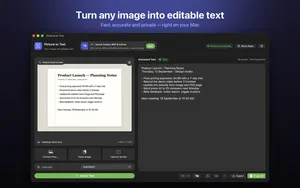
I build Picture to Text - ExtractText, a free Mac OCR app that reads images, PDFs and any area of the screen on your Mac, and the screenshots here come from it. If you want to try it as you read, get Picture to Text on the Mac App Store.
Why can't I just open an image in Word?
An image or scanned PDF contains a picture of text, not text. Word and Pages can place the picture in a document, but you cannot edit the words. You need OCR (optical character recognition) to read the letters and turn them into real text first.
How do I convert an image to Word on Mac?
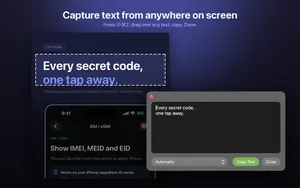
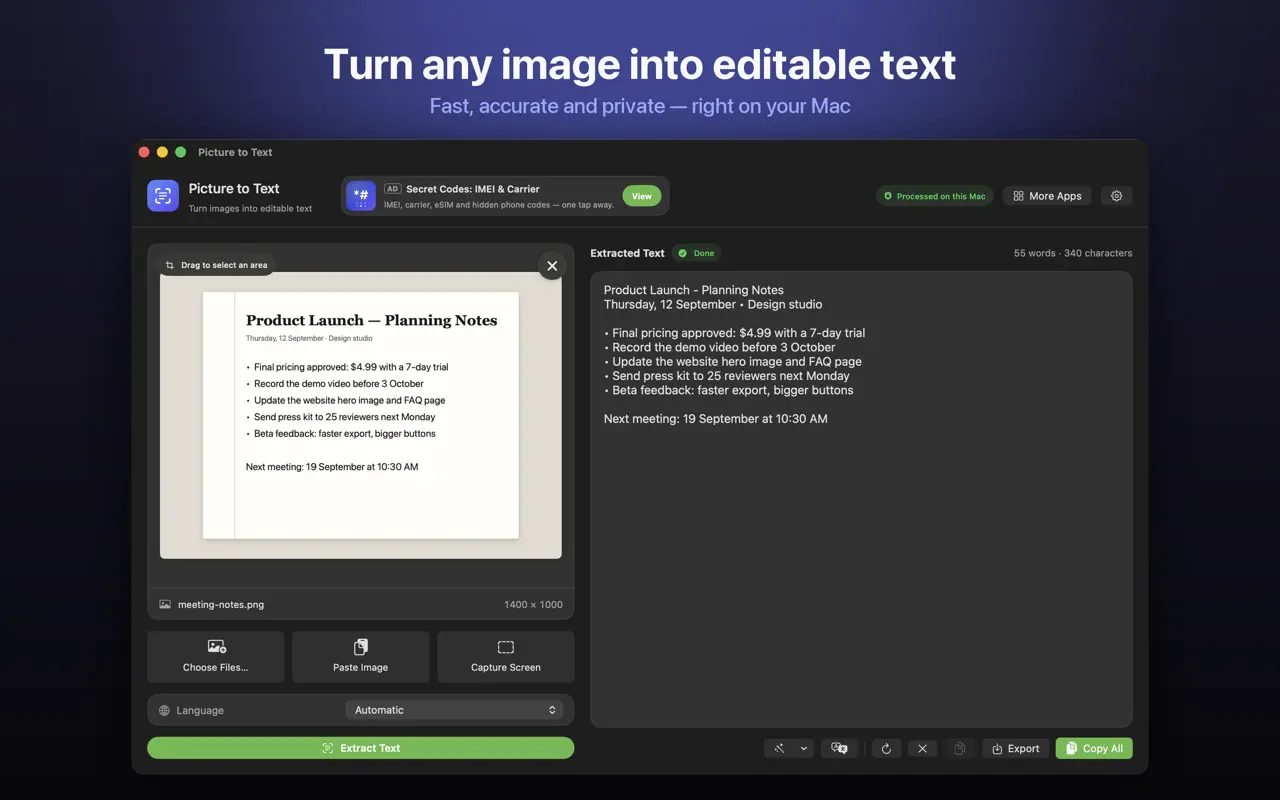
- Extract the text. Drag the image or PDF into Picture to Text. For something on screen, press Shift-Command-2 and drag over it.
- Check it. Read through and fix anything misread, especially names, numbers and email addresses.
- Clean up. Use Clean Up to join broken lines and remove extra spaces, so paragraphs flow.
- Paste into Word or Pages.
- Rebuild the layout: apply heading styles, turn lists into bullet points, and recreate any table with Insert > Table.
- Save as Word. In Word, save as .docx. In Pages, use File > Export To > Word.
Will the formatting be kept?
The words come across; the design mostly does not. Fonts, columns, colours and exact positions are not recreated, and tables come through as lines of text. For most letters, reports and notes, that is fine: applying a few heading styles takes less time than fixing a messy automatic layout. For forms with complex layouts, consider whether you really need an editable copy or just the content.
What about multi-page scanned PDFs?
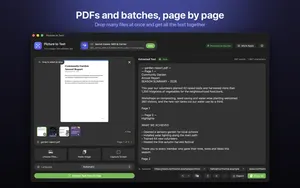
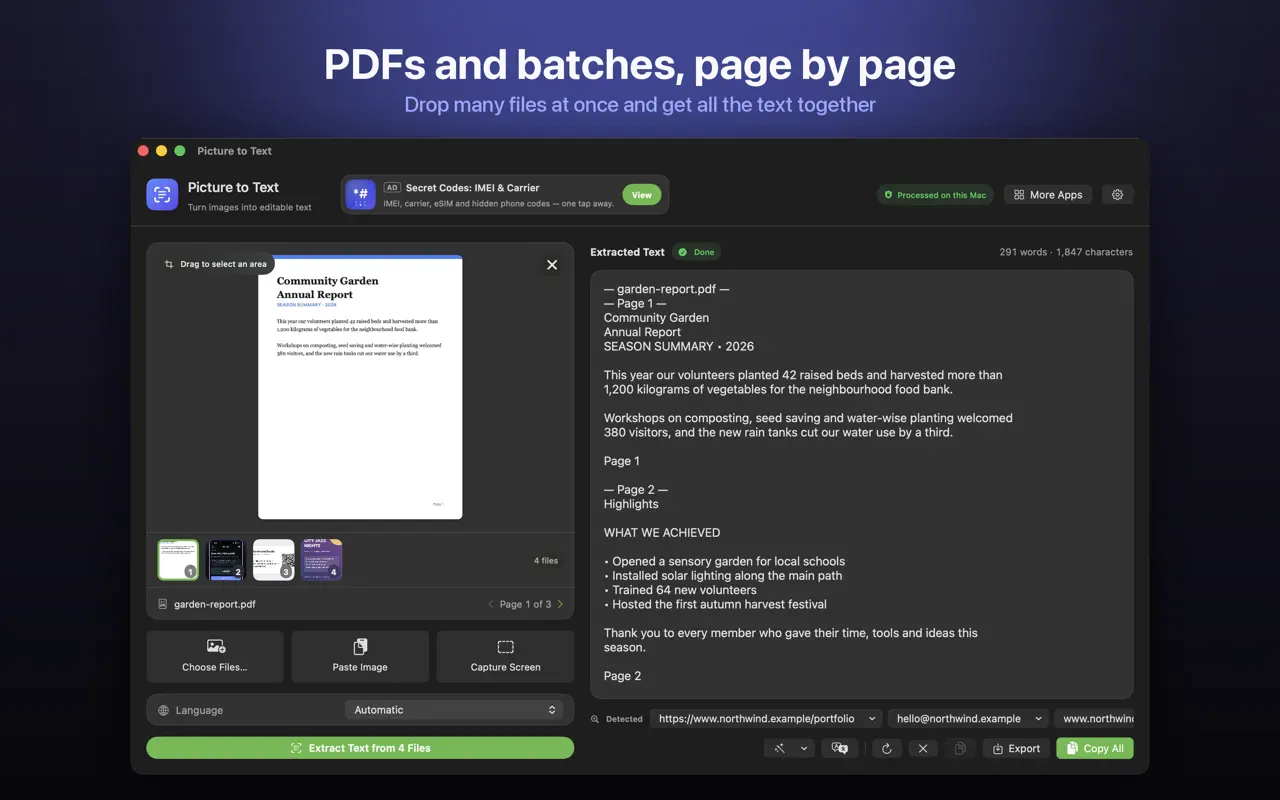
Picture to Text reads multi-page PDFs page by page, shows progress and labels each page in the result, so you can find where each passage came from. Export everything as a .txt file, or copy page by page into your document. More in how to copy text from a scanned PDF on Mac.
What about online converters?
Online "image to Word" sites can keep more of the layout, but they require uploading your file to someone else's server. That is a poor fit for contracts, bank statements, medical letters or ID. Picture to Text uses Apple's on-device recognition: no uploads, no account and no tracking, and it works offline.
Tips for a better result
- Start from the clearest source: a 300 dpi scan beats a phone photo.
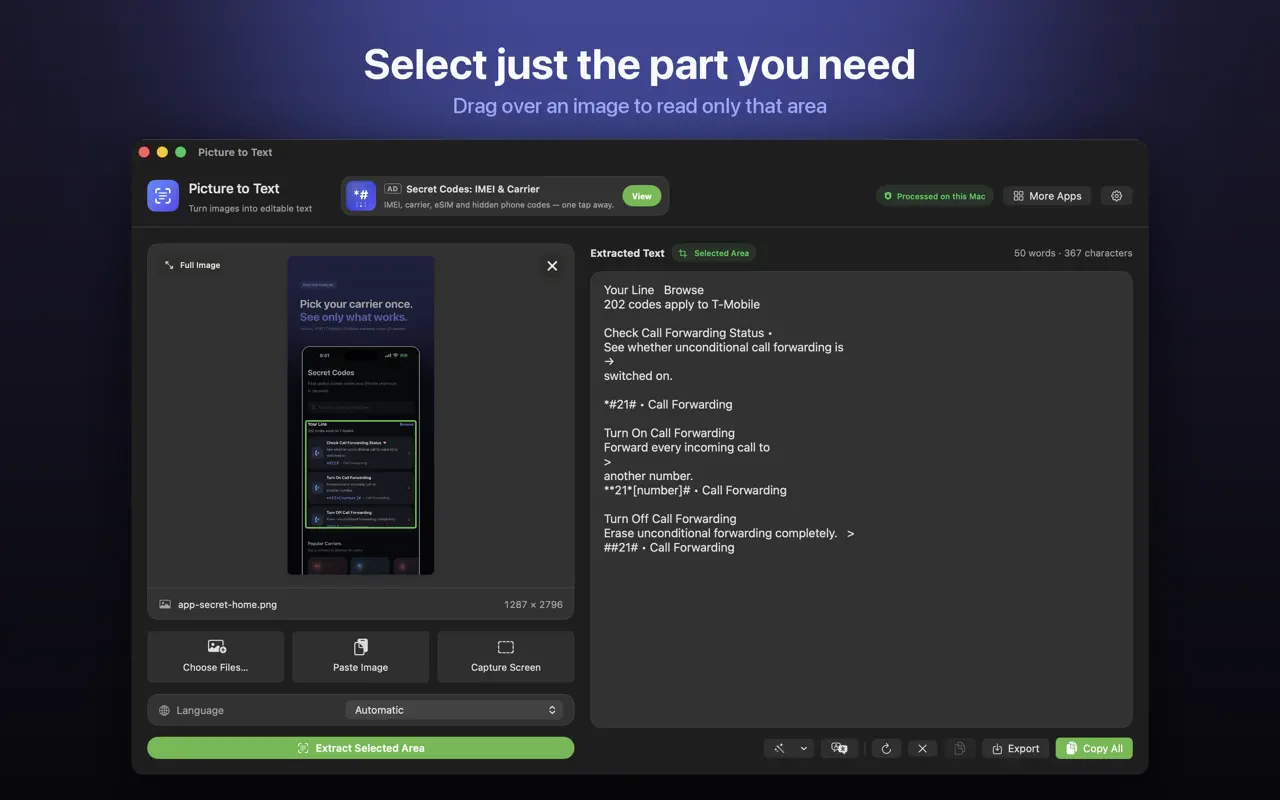
- For columns, extract one column at a time by dragging over it.
- Pick the document language if automatic detection struggles.
- Use Find and Replace in Word to fix repeated OCR mistakes in one go. See how to remove line breaks.
How Picture to Text helps
- Drop in images or PDFs, paste from the clipboard, or choose several files at once.
- Capture any area of the screen with Shift-Command-2 or from the menu bar.
- Read multi-page scanned PDFs, with each page labelled in the result.
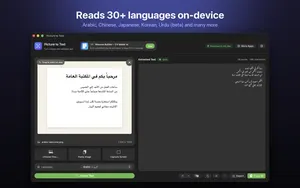
- 30+ languages, including Urdu, Persian, Pashto, Sindhi and Punjabi in beta.
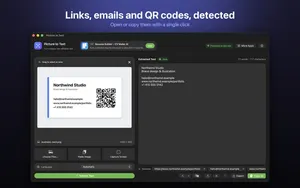
- Clean Up, Detect and Translate: join broken lines, open links, emails, phone numbers, QR codes and barcodes, and translate on macOS 26 or later.
- Private: Apple's on-device Vision framework, no uploads, no account, no tracking, and it works offline.
Download Picture to Text free on the Mac App Store and copy text from anything on your screen.
How to convert an image or scanned PDF to Word on Mac: step by step
- Open Picture to Text. Drag the image or scanned PDF into Picture to Text, or press Shift-Command-2 to capture part of the screen.
- Check the text. Read through the result and fix any misread words, especially names and numbers.
- Clean it up. Use Clean Up to join broken lines and remove extra spaces.
- Paste into Word or Pages. Copy the text into a new document and add headings, lists and tables.
- Save as .docx. In Word, save as .docx. In Pages, choose File > Export To > Word.
Frequently asked questions
How do I convert an image to a Word document on Mac?
Extract the text with OCR, clean it up, paste it into Word or Pages, add formatting and save as .docx.
Can Word for Mac convert an image to text?
Not directly. Word can insert the image, but you need OCR to turn it into editable text.
How do I convert a scanned PDF to Word on Mac?
Run OCR on the PDF with an app like Picture to Text, which reads every page, then paste the text into Word.
Will the formatting be kept when converting an image to Word?
The text is kept, but fonts, columns and table layouts usually need to be recreated.
How do I save a Pages document as Word?
File > Export To > Word.
Is it safe to use online image to Word converters?
They upload your file to a server. For private documents, use on-device OCR instead.
Can I convert a JPG to Word on Mac?
Yes. Drop the JPG into an OCR app, copy the text into Word and save as .docx.
How do I convert a table in an image to Word?
Extract the text, then recreate the table with Insert > Table and paste the values in.
Does Picture to Text export to Word?
It exports text as a .txt file or copies it, which you can paste into Word or Pages and save as .docx.
Does it work offline?
Yes. Picture to Text runs entirely on your Mac.
Which languages can I convert?
Picture to Text supports 30+ recognition languages, including Urdu, Persian and Punjabi in beta.
Picture to TextDownload free