 SnapText guide
How to Copy Text From a Screenshot on iPhone
By Muhammad Shahid Khan · · 4 min read
Quick answer
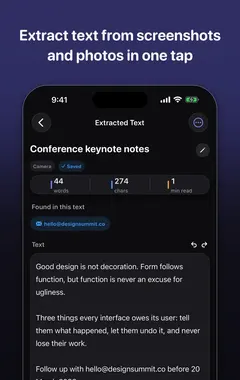
Open the screenshot in Photos, touch and hold a word, drag the handles to select the text, and tap Copy (this uses Live Text on iPhone XS or later). To grab all the text from a long screenshot at once, open it in SnapText, which extracts everything as editable text you can clean up, copy or save.
SnapTextScan Images, Extract Text · Free on the App StoreDownload free →Screenshots are where a lot of useful text ends up: a chat you need to quote, an error message, an address from a map, a recipe from social media, or details from an app that will not let you copy. Here is how to get that text back out.
How do I copy text from a screenshot with Live Text?
- Open the screenshot in the Photos app.
- Touch and hold on a word until it is highlighted.
- Drag the selection handles to cover the text you need. To select everything, tap the Live Text icon and choose Select All.
- Tap Copy, then paste wherever you need it.
You can also do this straight after taking the screenshot, from the preview thumbnail in the corner of the screen.
How do I extract all the text from a long screenshot?
For long screenshots, such as a full chat, an article or a list, selecting with your finger gets tedious. In SnapText:
- Choose the screenshot from your photos.
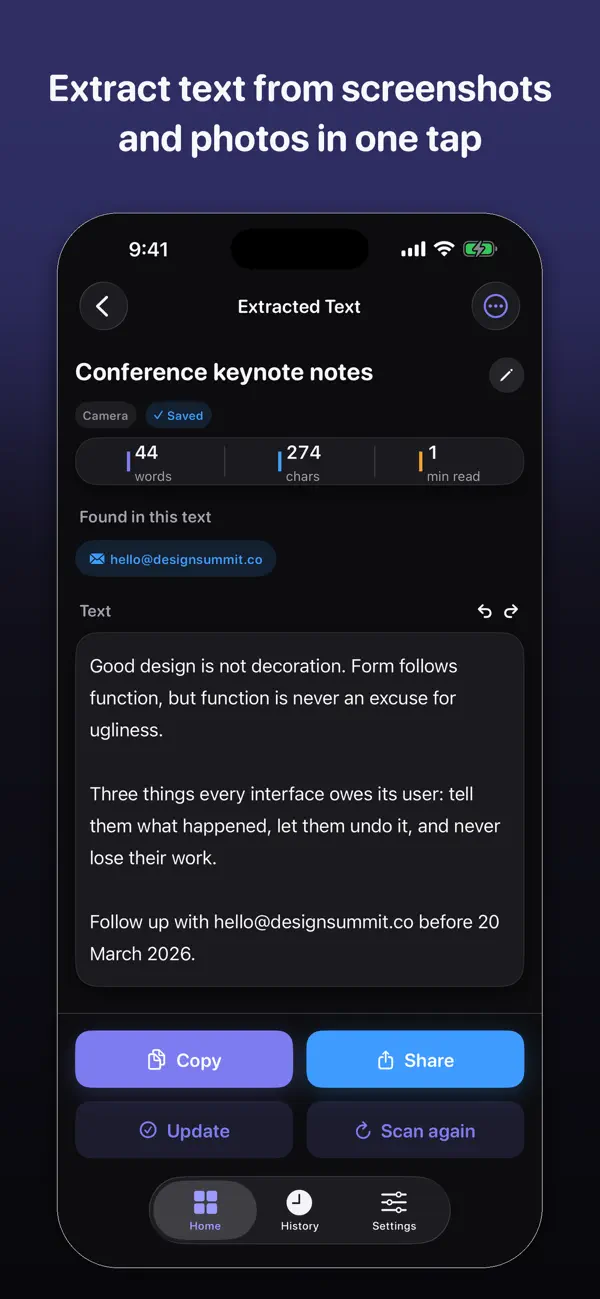
- SnapText extracts all the text in seconds.
- Edit it, or remove unwanted line breaks with the cleanup tools.
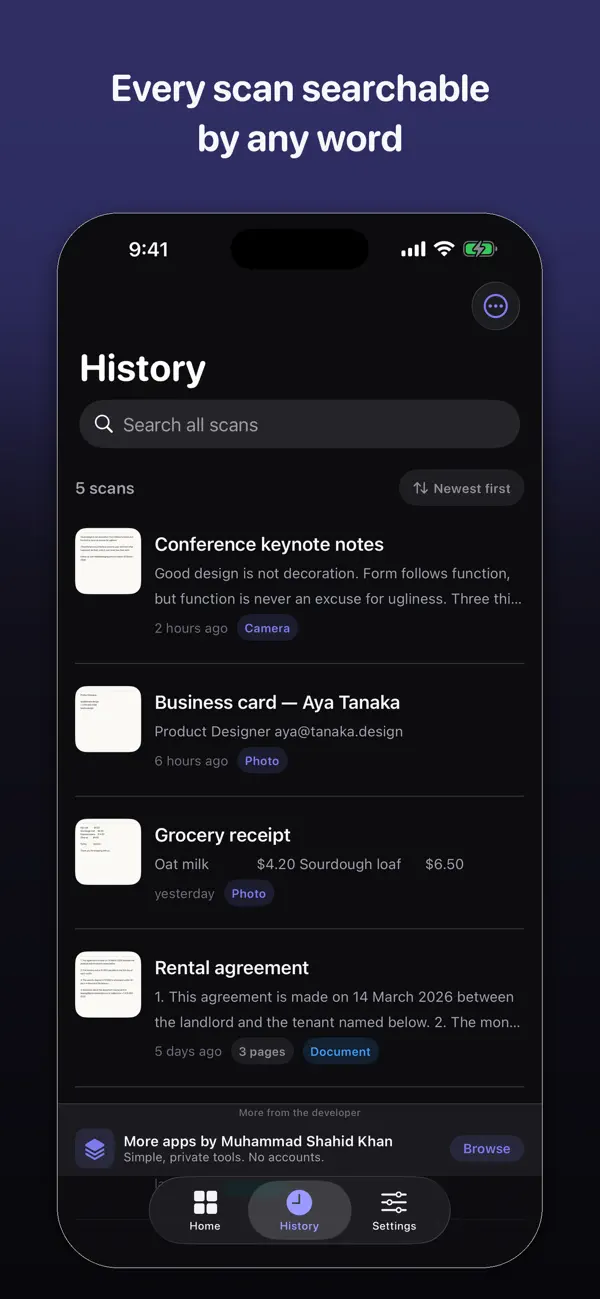
- Copy, share or export it. The result is saved, so you can search for it later.
Why won't text in my screenshot select?
- Your iPhone is too old for Live Text. It needs iPhone XS, XR or newer with iOS 15 or later. Older iPhones can still use an OCR app.
- Live Text is turned off. Check Settings > General > Language & Region > Live Text.
- The text is too small or blurry. Zoom in before taking the screenshot, or crop it.
- The text is on a busy background, such as an image or video frame. Try cropping close to the text.
- The language is not supported. Live Text supports a limited set of languages.
What useful things can I do with screenshot text?
- Save a chat or receipt as searchable text instead of an image.
- Copy an error message to search for a fix.
- Grab a tracking number, booking code or address from an app that blocks copying.
- Tap a phone number, email or link found in the screenshot. SnapText detects these automatically.
- Translate it by pasting it into a translation app.
Is screenshot text kept private?
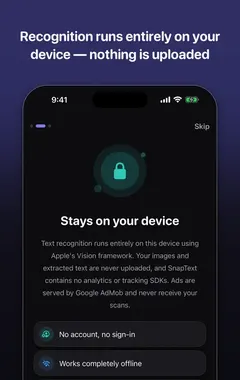
Screenshots often contain private messages and account details. SnapText recognises text on your device with Apple's Vision framework and does not use external OCR or AI services, third-party analytics or tracking. See private OCR on iPhone for why this matters.
More guides you may find useful:
- Live Text Not Working on iPhone? 9 Fixes (and What to Use Instead)
- How to Remove Line Breaks From Copied or Scanned Text (iPhone, Mac and Web)
- How to Translate Text From an Image on iPhone (Photos, Signs, Menus and Documents)
How SnapText helps
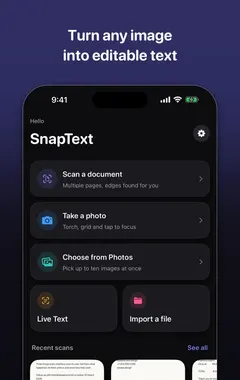
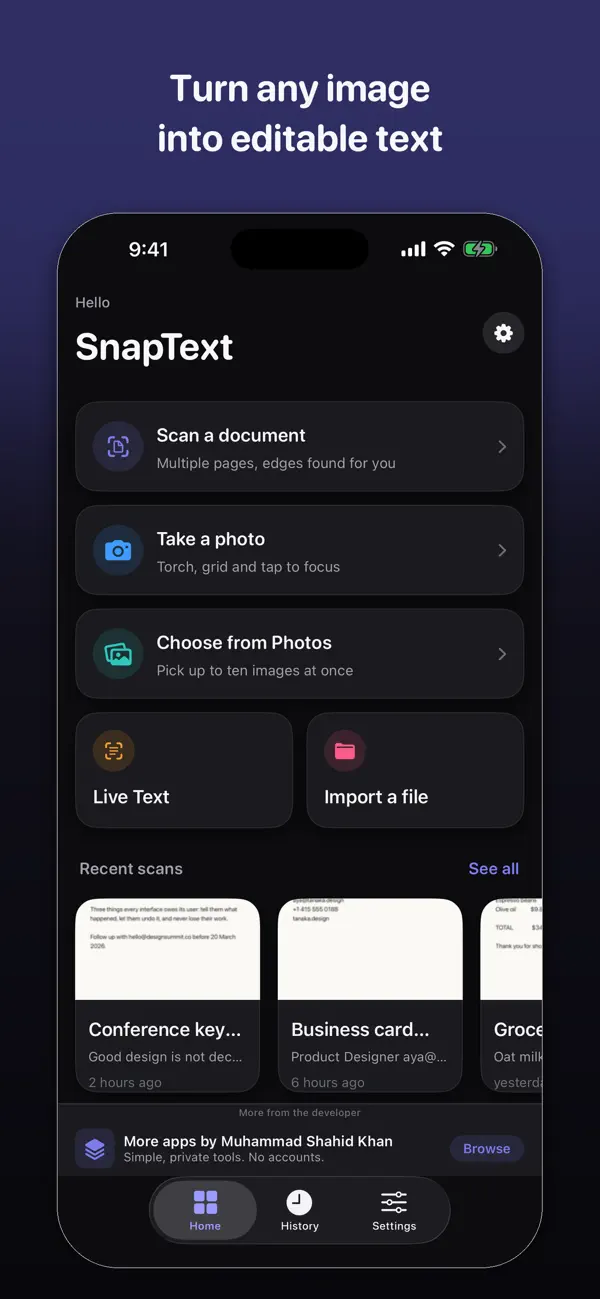
- Extract all the text at once from a photo, screenshot, scanned document or the camera.
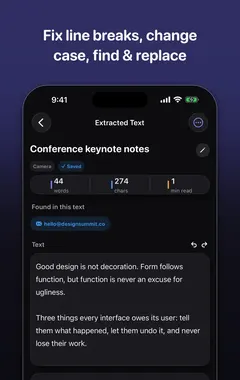
- Edit the result straight away, and clean up line breaks and spacing in one tap.
- Detect links, emails and phone numbers so you can use them directly.
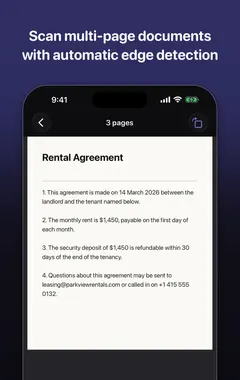
- Scan several pages and keep them together.
- Search your saved scans later, and copy, share or export the text.
- Private by design: on-device recognition, no account, no tracking, and core OCR works offline.
Download SnapText free on the App Store and turn any image into text you can use.
Frequently asked questions
Can I copy text from a screenshot on iPhone?
Yes. Open the screenshot in Photos, touch and hold a word, drag to select and tap Copy. This uses Live Text on iPhone XS or newer.
How do I select all text in a screenshot?
Tap the Live Text icon in the corner of the photo and choose Select All, or open the screenshot in SnapText to extract all the text at once.
Why can’t I copy text from my screenshot?
Live Text needs iPhone XS, XR or newer with iOS 15 or later and must be turned on. Small, blurry or low-contrast text may also not be recognised.
How do I turn on Live Text?
Go to Settings > General > Language & Region and turn on Live Text.
Can older iPhones copy text from screenshots?
Not with Live Text, but an OCR app can extract the text on supported iOS versions. SnapText requires iOS 17 or later.
Can I copy text from a long scrolling screenshot?
Yes. SnapText extracts all the text from the image at once, which is easier than selecting by hand.
Does SnapText upload my screenshots?
No. Text recognition runs on your iPhone, and nothing is sent to external OCR or AI services.
Can I copy a phone number from a screenshot?
Yes. Both Live Text and SnapText recognise phone numbers, and SnapText detects them automatically so you can use them directly.
Can I search my screenshots by text?
SnapText saves each extraction to a searchable history. The Photos app can also search for text in images.
Is SnapText free?
SnapText is free to download from the App Store.
SnapTextDownload free