 SnapText guide
10 Tips for More Accurate OCR: Get Clean Text From Photos
By Muhammad Shahid Khan · · 5 min read
Quick answer
OCR accuracy depends mostly on the photo. Use bright, even light, keep the camera parallel to the page and in focus, avoid glare and shadows, fill the frame with the text, and crop out busy backgrounds. Then check numbers and names by eye before you rely on them.
SnapTextScan Images, Extract Text · Free on the App StoreDownload free →When OCR gets text wrong, swapping "rn" for "m" or "0" for "O", it is tempting to blame the app. But modern on-device text recognition is very good on a good image. Nearly every error comes from something in the photo. Fix the photo and the text fixes itself.
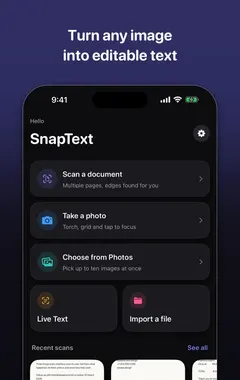
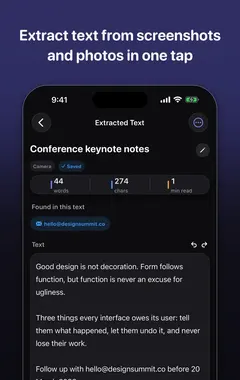
I build SnapText - Image to Text, a free iPhone OCR app that reads text on your device, and the screenshots in this guide come from it. If you want to try each step as you read, get SnapText on the App Store.
Why does OCR make mistakes?
OCR has to separate each letter from the background and then recognise its shape. Anything that blurs those shapes or reduces contrast causes mistakes: motion blur, poor focus, low light, glare, shadows, steep angles, curved pages, tiny text and decorative fonts.
10 tips for more accurate OCR
- Use bright, even light. Daylight from a window is ideal. Avoid a single lamp that lights only part of the page.
- Kill the glare. On glossy paper or screens, tilt the page slightly until reflections disappear.
- Avoid your own shadow. Stand so the light comes from the side, not from behind you.
- Hold the camera parallel to the page. Angled shots squash letters at one end.
- Tap to focus on the text, and hold still. Brace your elbows on the table for long documents.
- Fill the frame with the text. Larger letters in the image mean better recognition. Move closer rather than zooming digitally.
- Flatten the page. Text near a book's spine curves. Press the page flat or scan one page at a time.
- Crop out the background, especially patterns and other text that is not part of what you need.
- Use the original, not a forwarded copy. Images sent through chat apps are compressed and lose detail.
- Check the important bits. Read numbers, names, email addresses and amounts against the original.
Which characters does OCR confuse most?
| Often confused | Why |
|---|---|
| 0 and O | Nearly identical in many fonts |
| 1, l and I | Thin vertical strokes |
| rn and m | Letters touching at low resolution |
| 5 and S, 8 and B | Similar curves when blurred |
| , and . | Small marks lost in low light |
That is why checking numbers matters most: words usually still make sense with one wrong letter, but a phone number or amount does not.
How do I fix formatting after extraction?
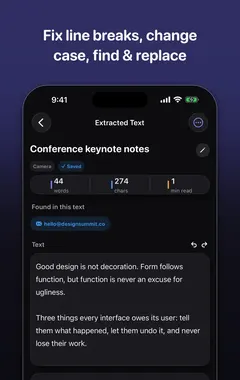
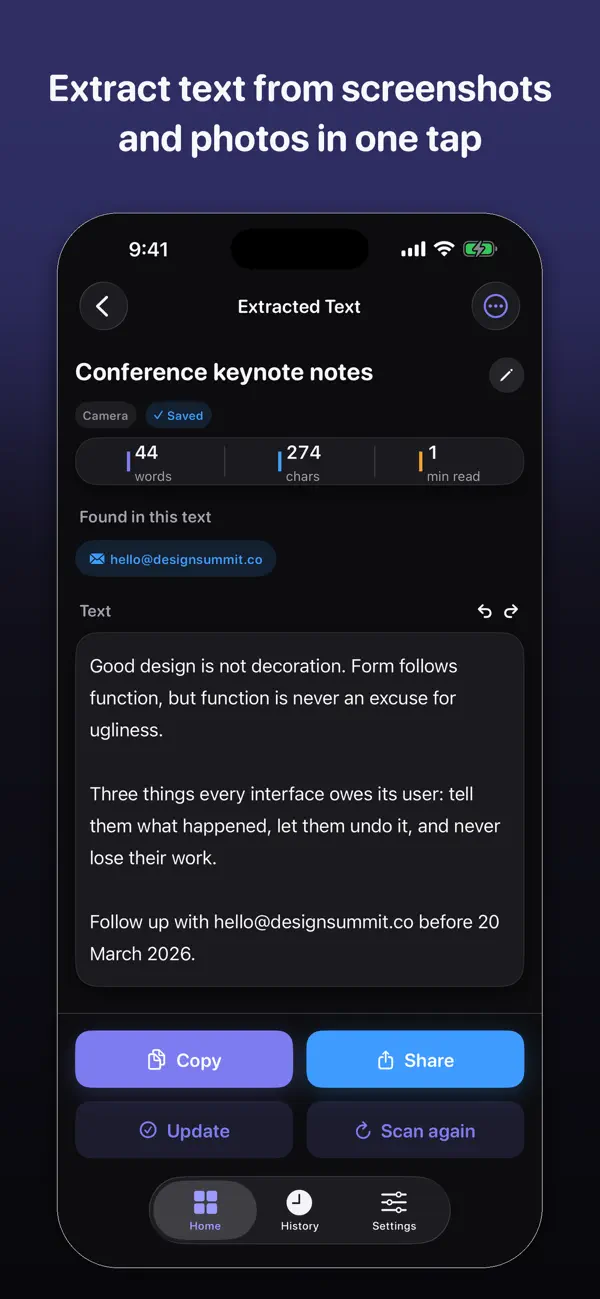
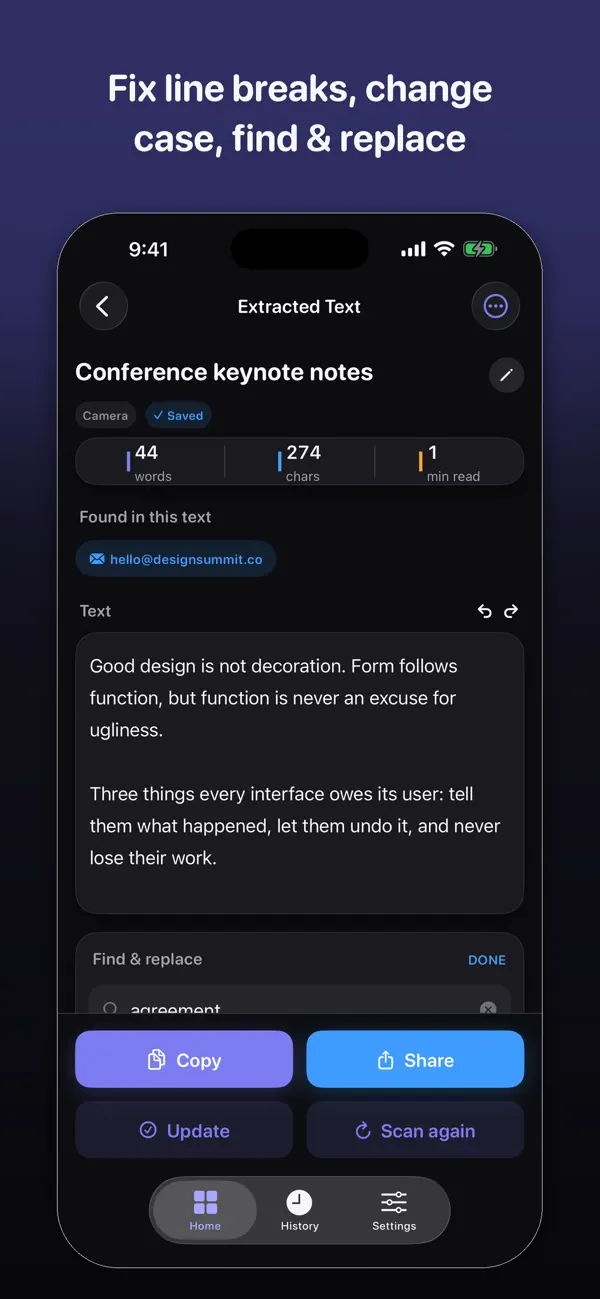
Even perfect OCR keeps the line breaks from the page, which looks broken once pasted. SnapText's cleanup tools remove unwanted line breaks and tidy formatting. It also detects links, emails and phone numbers, so you can check them quickly.
What about handwriting and unusual fonts?
Neat handwriting can often be read, but accuracy drops quickly with joined-up or rushed writing. Decorative, script and very condensed fonts are harder too. For these, take the sharpest photo you can, and expect to correct a few words.
What about screenshots?
Screenshots usually OCR perfectly because they are already sharp and flat. If one does not, the text is probably too small: zoom in before taking the screenshot. See how to copy text from a screenshot.
More guides you may find useful:
- How to Convert Handwriting to Text on iPhone (Notes, Letters and Whiteboards)
- How to Remove Line Breaks From Copied or Scanned Text (iPhone, Mac and Web)
- Live Text Not Working on iPhone? 9 Fixes (and What to Use Instead)
How SnapText helps
- Extract all the text at once from a photo, screenshot, scanned document or the camera.
- Edit the result straight away, and clean up line breaks and spacing in one tap.
- Detect links, emails and phone numbers so you can use them directly.
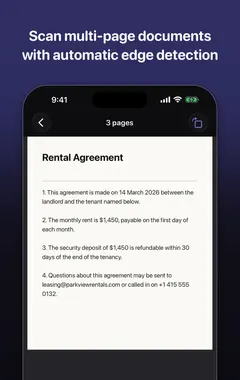
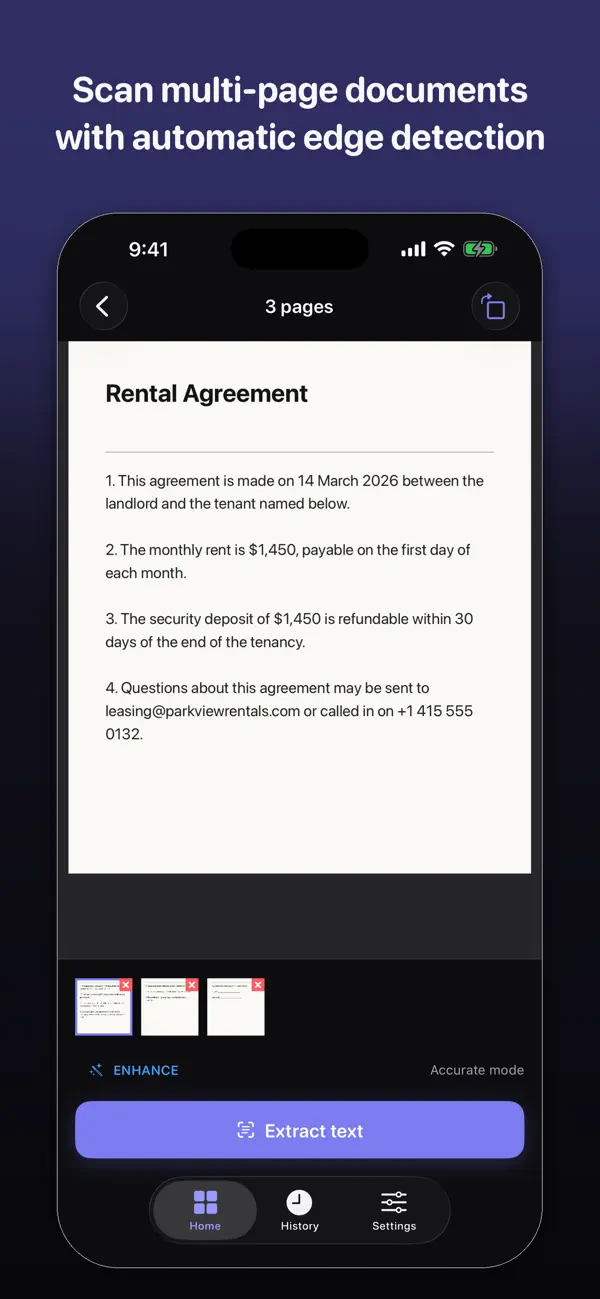
- Scan several pages and keep them together.
- Search your saved scans later, and copy, share or export the text.
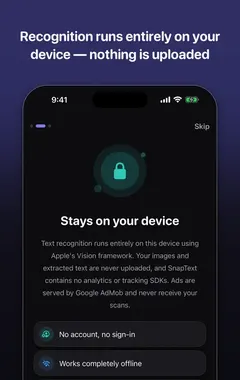
- Private by design: on-device recognition, no account, no tracking, and core OCR works offline.
Download SnapText free on the App Store and turn any image into text you can use.
For documents, see how to scan a document to editable text.
Frequently asked questions
Why is my OCR result full of mistakes?
Almost always because of the photo: blur, low light, glare, shadows, an angled shot or small text. Retake the photo with bright, even light and the camera parallel to the page.
How do I improve OCR accuracy?
Use bright even light, avoid glare, hold the camera parallel and steady, fill the frame with the text, flatten the page and crop out busy backgrounds.
Why does OCR confuse 0 and O?
They look almost identical in many fonts. Always check numbers and codes by eye.
Can OCR read handwriting?
Neat handwriting often works. Joined-up or rushed writing is much less reliable.
Should I zoom in when taking the photo?
Move the phone closer instead of using digital zoom, which reduces detail.
Do images sent on WhatsApp work for OCR?
They work, but chat apps compress images, which can reduce accuracy. Use the original photo where possible.
Why are there line breaks everywhere in my text?
OCR keeps the line breaks from the original page. SnapText’s cleanup tools remove them.
Do screenshots work well for OCR?
Yes. Screenshots are sharp and flat, so they usually give near-perfect results.
Does lighting really matter for OCR?
Yes. Even lighting with no glare or shadows is one of the biggest factors in accuracy.
How do I scan a page from a thick book?
Press the page as flat as you can and capture one page at a time, so text near the spine does not curve.
SnapTextDownload free