 SnapText guide
How to Extract Text From an Image on iPhone (3 Easy Ways)
By Muhammad Shahid Khan · · 5 min read
Quick answer
On iPhone XS or later you can use Live Text: open the photo, touch and hold a word, drag to select, then tap Copy. For longer text you want to edit, clean up, save or export, use an OCR app such as SnapText: pick or capture the image, and it extracts editable text on your device in seconds.
SnapTextScan Images, Extract Text · Free on the App StoreDownload free →Copying text out of a photo used to mean retyping it. Now your iPhone can read text in images itself. There are three ways to do it, and which one is best depends on what you want to do with the text afterwards.
Method 1: Live Text in the Photos app
Live Text is built into iOS 15 and later on iPhone XS, iPhone XR and newer.
- Open the photo or screenshot in Photos.
- Touch and hold a word until it is highlighted. If nothing happens, tap the Live Text icon in the corner.
- Drag the handles to select the text you want.
- Tap Copy, then paste it anywhere.
Best for: grabbing a phone number, an address or a short paragraph. Limits: selecting long text is fiddly, line breaks are kept exactly as in the image, and nothing is saved, so you need to do it again next time.
Method 2: Live Text in the Camera
- Open Camera and point it at the text.
- When the Live Text icon appears, tap it.
- Select and copy the text without taking a photo.
Best for: quick one-off grabs, like a Wi-Fi password on a router. Limits: it is hard to keep the camera steady for long text, and there is no record afterwards.
Method 3: an OCR app like SnapText
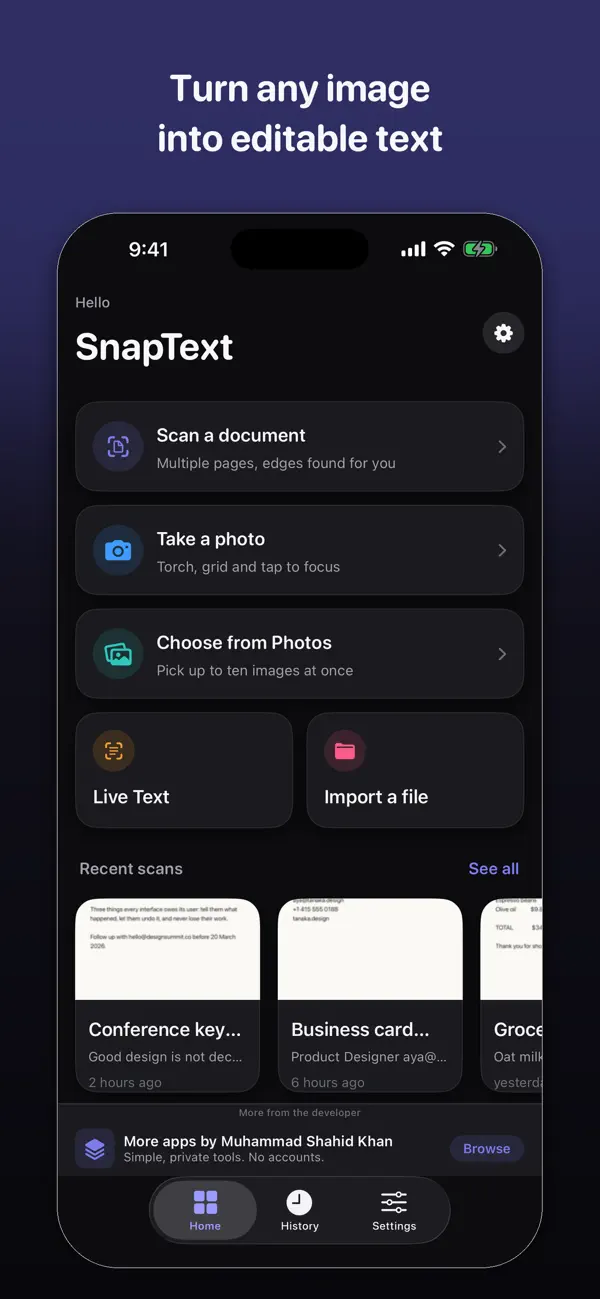
An OCR (optical character recognition) app turns the whole image into editable text in one go, and gives you tools for what comes next. With SnapText:
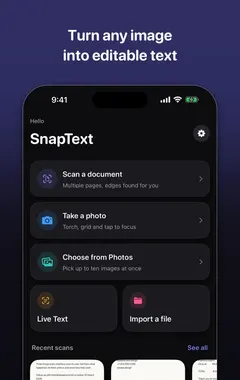
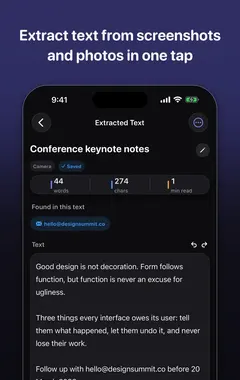
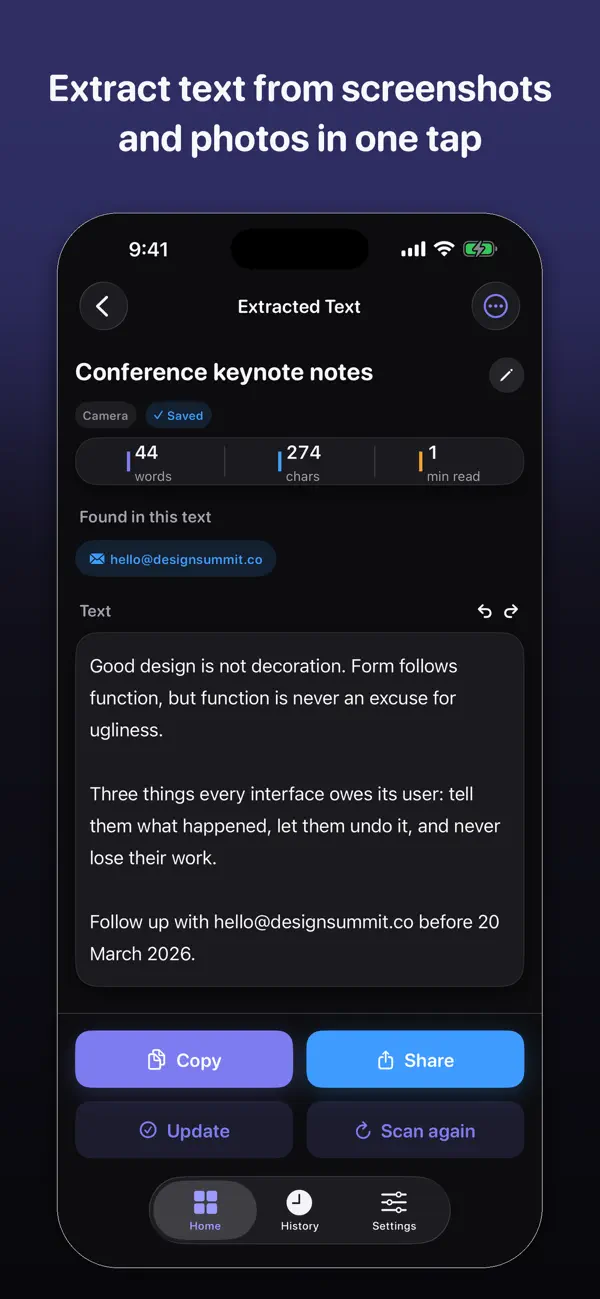
- Extract all the text at once from a photo, screenshot, scanned document or camera capture.
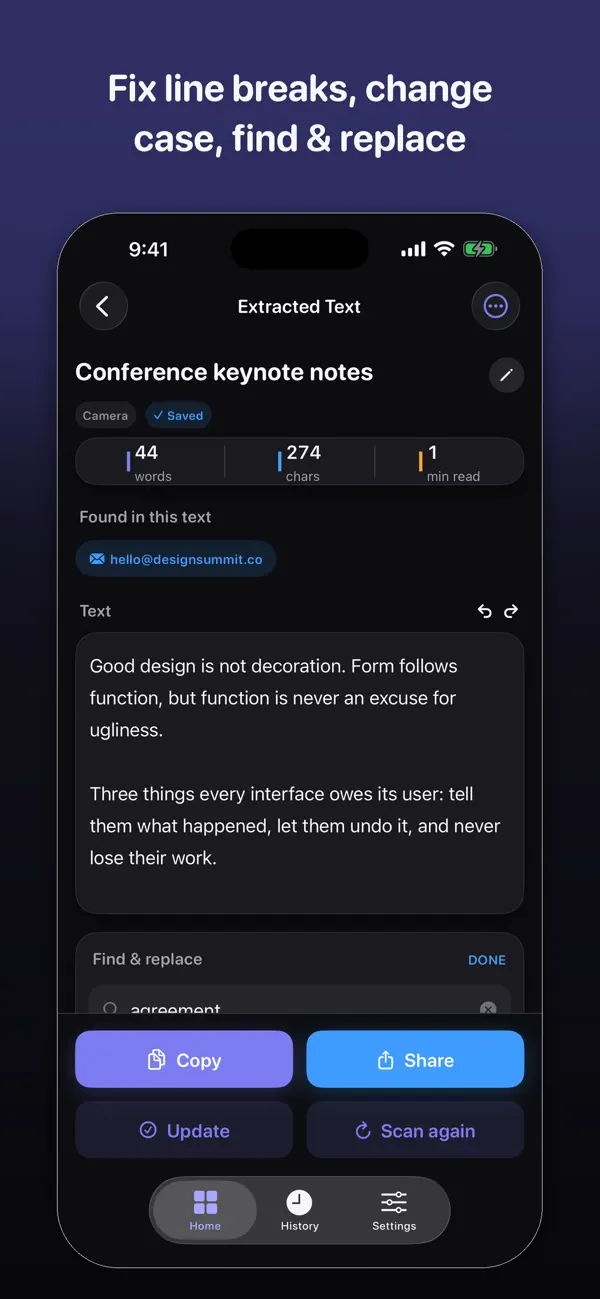
- Edit the result straight away.
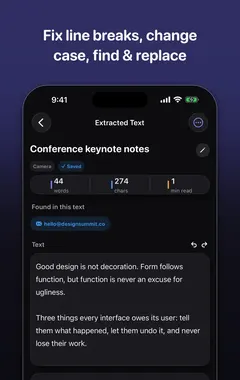
- Clean up formatting and remove unwanted line breaks, so pasted text flows as normal paragraphs.
- Detect links, emails and phone numbers so you can use them directly.
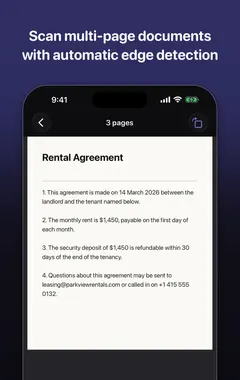
- Scan multiple pages and keep them together.
- Search your saved scans later.
- Copy, share or export the text.
Which method should I use?
| You want to… | Best method |
|---|---|
| Copy a phone number or address from a photo | Live Text in Photos |
| Grab something you are looking at right now | Live Text in Camera |
| Turn a full page or document into text | OCR app |
| Remove broken line breaks before pasting | OCR app with cleanup |
| Find the text again next week | OCR app with history |
| Scan several pages together | OCR app |
Is it private?
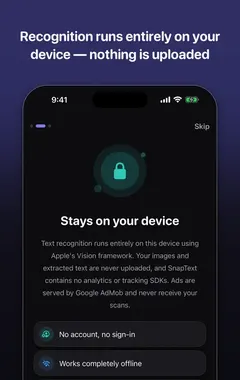
Both Live Text and SnapText recognise text on your device. SnapText uses Apple's Vision framework, does not need an account, and does not use third-party analytics, tracking, advertising SDKs, or external OCR or AI services. Your images and text stay on your iPhone unless you choose to share or export them. I explain why that matters in private OCR on iPhone.
Why is some text recognised wrongly?
OCR accuracy depends mostly on the image: blur, low light, glare, unusual fonts and curved pages cause most errors. The 10 tips for more accurate OCR fix most of these problems before they happen.
More guides you may find useful:
- Live Text Not Working on iPhone? 9 Fixes (and What to Use Instead)
- How to Translate Text From an Image on iPhone (Photos, Signs, Menus and Documents)
- How to Convert Handwriting to Text on iPhone (Notes, Letters and Whiteboards)
How SnapText helps
- Extract all the text at once from a photo, screenshot, scanned document or the camera.
- Edit the result straight away, and clean up line breaks and spacing in one tap.
- Detect links, emails and phone numbers so you can use them directly.
- Scan several pages and keep them together.
- Search your saved scans later, and copy, share or export the text.
- Private by design: on-device recognition, no account, no tracking, and core OCR works offline.
Download SnapText free on the App Store and turn any image into text you can use.
Working with documents? See how to scan a document to editable text on iPhone. Working with screenshots? See how to copy text from a screenshot.
How to extract text from an image with SnapText: step by step
- Open SnapText. Download SnapText - Image to Text from the App Store. No account is needed.
- Add an image. Take a photo, scan a document, or choose an image or screenshot from Photos.
- Extract the text. SnapText recognises the text on your device in seconds.
- Edit and clean up. Fix any errors and remove unwanted line breaks with the cleanup tools.
- Copy, share or export. Copy the text, share it to another app, or export it. The scan is saved to your searchable history.
Frequently asked questions
Can iPhone extract text from an image?
Yes. On iPhone XS or later with iOS 15 or newer, Live Text lets you select and copy text in photos, screenshots and the Camera. OCR apps like SnapText extract all the text at once and let you edit, clean up and save it.
How do I copy text from a photo on iPhone?
Open the photo in Photos, touch and hold a word, drag to select the text, and tap Copy.
Why can’t I select text in my photo?
Live Text needs iPhone XS, XR or newer with iOS 15 or later, and it must be turned on in Settings. The text also needs to be clear enough to recognise.
What is OCR?
Optical character recognition: technology that recognises letters in an image and turns them into editable text.
Does SnapText work offline?
Yes. The core OCR features work offline, because text recognition runs on your iPhone.
Does SnapText upload my photos?
No. Recognition happens on your device using Apple’s Vision framework, and your images stay on your iPhone unless you choose to share or export them.
Can SnapText remove line breaks?
Yes. Its cleanup tools remove unwanted line breaks and tidy formatting, so text pastes as normal paragraphs.
Can I extract text from a screenshot?
Yes. Choose the screenshot from Photos in SnapText, or use Live Text directly in the Photos app.
Can SnapText scan several pages?
Yes. You can scan multiple pages and documents, and search your saved scans later.
Does SnapText detect phone numbers and links?
Yes. It detects useful information such as links, email addresses and phone numbers in the extracted text.
Do I need an account to use SnapText?
No. There is no account or sign-in.
SnapTextDownload free