 SnapText guide
OCR for Students: Turn Lecture Slides, Textbooks and Notes Into Text on iPhone
By Muhammad Shahid Khan · · 4 min read
Quick answer
Students can use OCR to turn photos of slides, textbook pages, whiteboards and handwritten notes into editable text. Photograph the material, extract the text with an app like SnapText, clean it up, and paste it into your notes. That makes everything searchable, quick to turn into flashcards, and easy to quote accurately. Always cite your sources.
SnapTextScan Images, Extract Text · Free on the App StoreDownload free →| Good for | Slides, textbook pages, whiteboards, handwritten notes |
|---|---|
| Main benefits | Searchable notes, flashcards, accurate quotes |
| Works offline | Yes, with on-device OCR |
| Check carefully | Formulas, numbers and names |
| Remember | Cite sources and respect copyright |
Most students already take photos of slides and whiteboards, and then never look at them again because a camera roll is impossible to search. OCR changes that. Once the words are text, your notes become searchable, editable and easy to reuse for revision. Here is a simple workflow that fits around lectures.
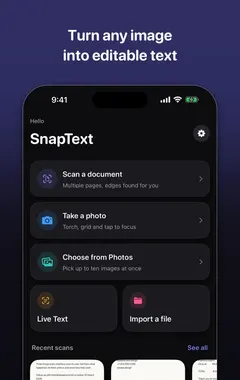
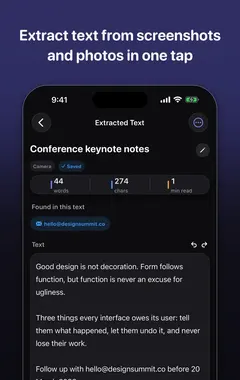
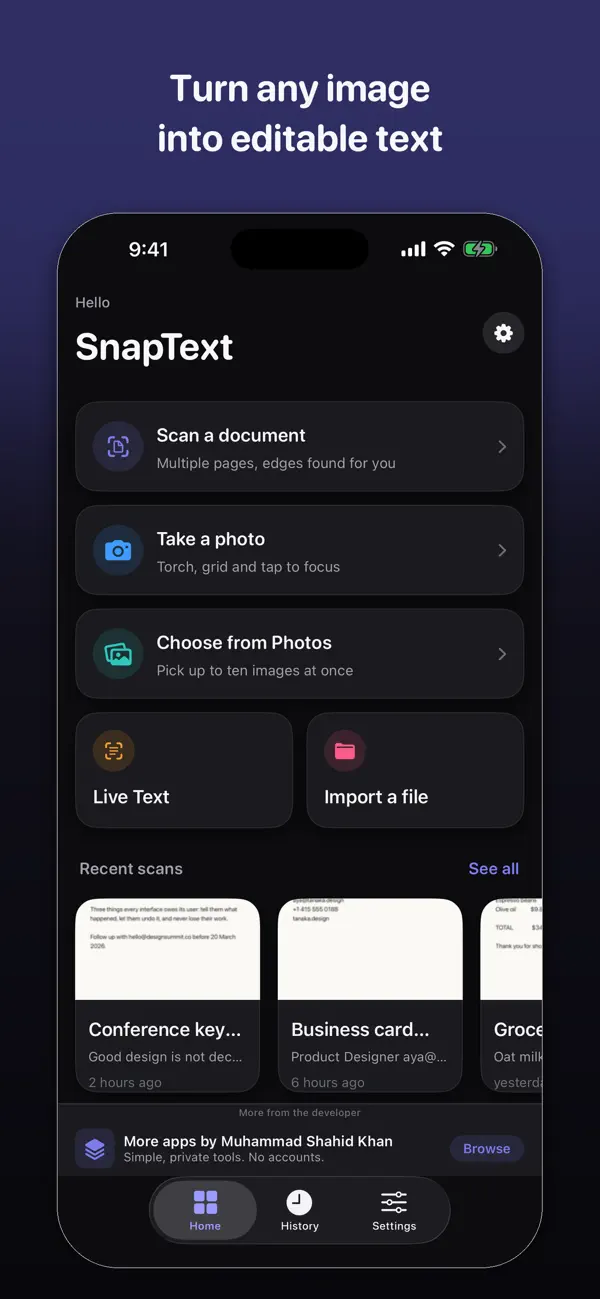
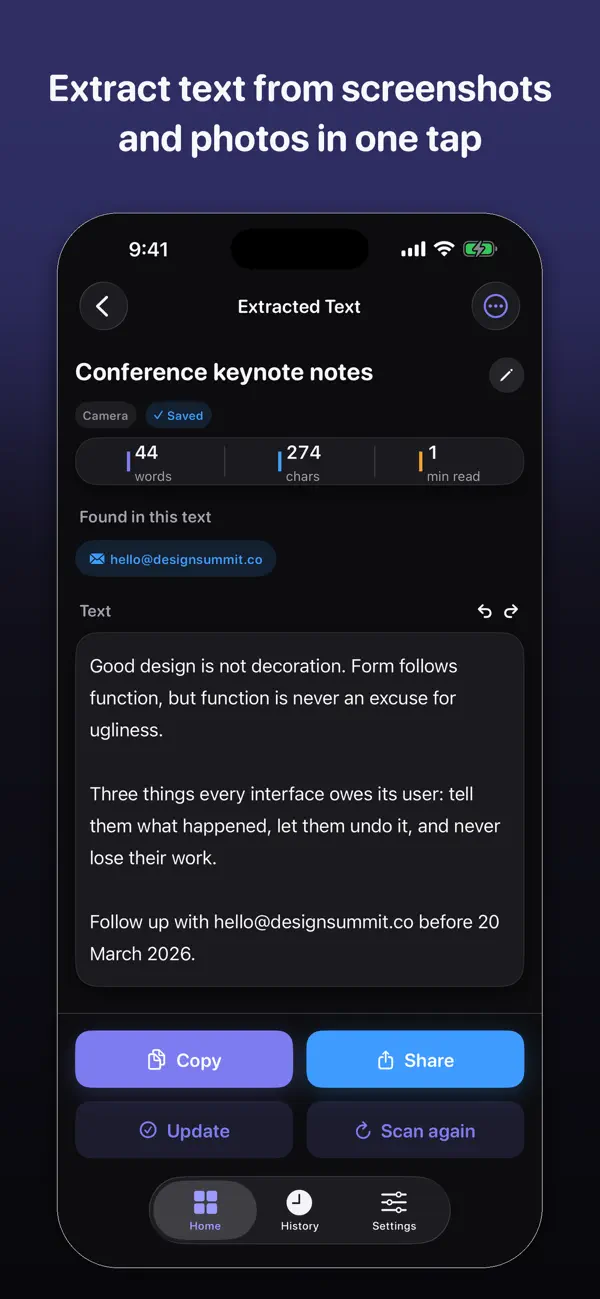
I build SnapText - Image to Text, a free iPhone OCR app that reads text on your device, and the screenshots in this guide come from it. If you want to try each step as you read, get SnapText on the App Store.
What can students scan with OCR?
- Lecture slides projected in class or shared as images.
- Textbook and library book pages for quotes and key passages.
- Whiteboards at the end of a lesson or group session.
- Your own handwritten notes, to tidy them into typed notes. See handwriting to text on iPhone.
- Handouts and past papers that only exist on paper.
- Screenshots of online lectures and readings. See copy text from a screenshot.
A simple workflow after each lecture
- Capture slides and boards during the lecture, straight on and without glare.
- Extract the text in SnapText the same day while you remember the context.
- Clean up line breaks and fix any misread terms, especially formulas and names.
- Paste into your notes app under the lecture title and date.
- Add your own words: a summary in two or three lines and any questions.
This takes about ten minutes, and you end up with notes you can actually search before exams.
How does OCR help with revision?
- Flashcards: turn definitions and dates into question-and-answer cards in seconds.
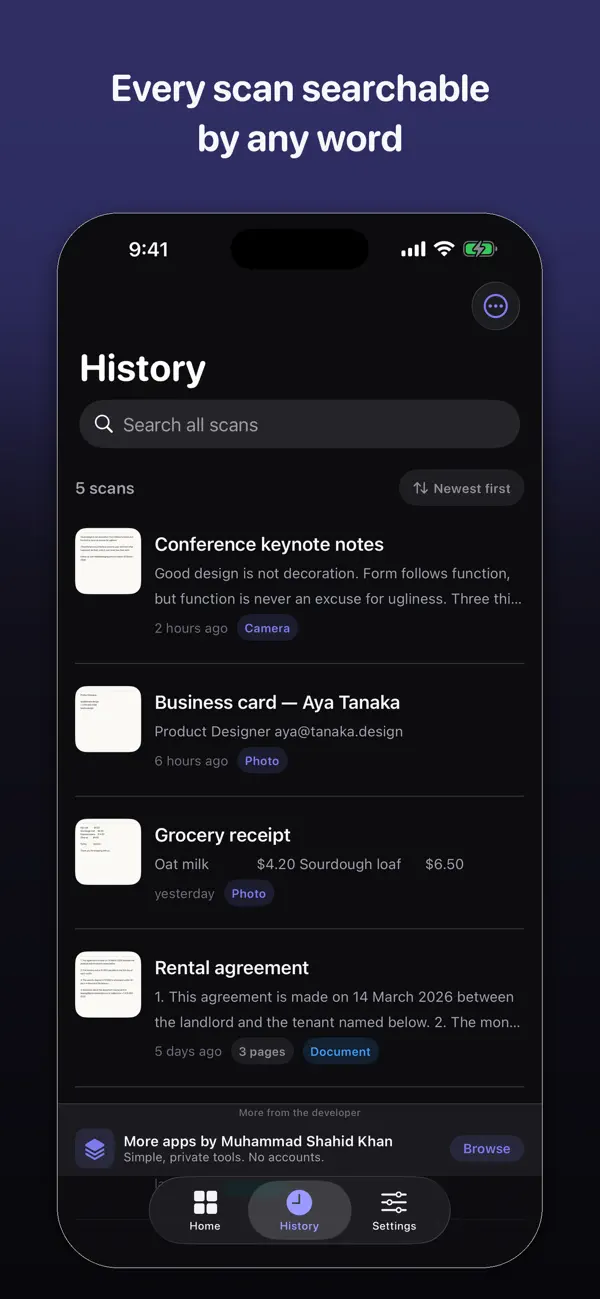
- Search: find every mention of a topic across a term's worth of notes.
- Accurate quotes: copy a passage exactly for an essay instead of retyping it.
- Listening: paste text into an app or use iPhone's Speak Selection to hear notes read aloud.
- Accessibility: larger text, dyslexia-friendly fonts and screen readers all work better with real text than with photos.
What should students be careful about?
- Check formulas, symbols and numbers. OCR is best with ordinary words, and maths notation often needs fixing.
- Cite everything you quote. Copying text accurately is not permission to use it without a reference.
- Respect copyright. Scanning pages for your own study is different from sharing whole chapters.
- Ask before photographing slides if your lecturer or university has a policy on recording.
Do I need internet to scan notes?
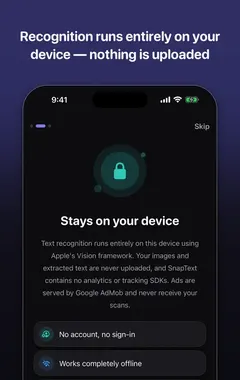
No. SnapText uses Apple's on-device recognition, so it works in a lecture hall, a library basement or on the train, and your notes are not uploaded anywhere. See private OCR on iPhone. For better scans, see 10 tips for more accurate OCR.
How SnapText helps
- Extract all the text at once from a photo, screenshot, scanned document or the camera.
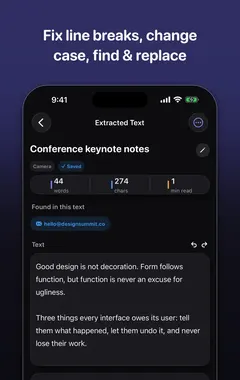
- Edit the result straight away, and clean up line breaks and spacing in one tap.
- Detect links, emails and phone numbers so you can use them directly.
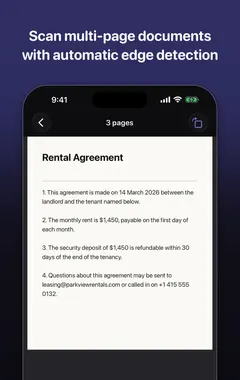
- Scan several pages and keep them together.
- Search your saved scans later, and copy, share or export the text.
- Private by design: on-device recognition, no account, no tracking, and core OCR works offline.
Download SnapText free on the App Store and turn any image into text you can use.
Frequently asked questions
How can students use OCR?
To turn photos of slides, textbook pages, whiteboards and handwritten notes into searchable, editable text for revision and essays.
How do I turn lecture slides into text?
Photograph the slides, extract the text with an OCR app such as SnapText, clean it up and paste it into your notes.
Can I scan a textbook page to text on iPhone?
Yes. Photograph the page flat and in good light, then extract the text with Live Text or an OCR app.
Can OCR read maths formulas?
Simple ones sometimes, but symbols, fractions and subscripts often need correcting by hand.
Is it legal to scan textbook pages?
Scanning short extracts for your own study is generally fine. Sharing whole chapters is not. Check your country’s rules and your university’s policy.
How do I make flashcards from scanned notes?
Extract the text, then copy definitions, dates and key facts into a flashcard app as questions and answers.
Can I search my scanned notes?
Yes. Once extracted, the text is searchable, and SnapText keeps a searchable history of scans.
Does SnapText work offline in lectures?
Yes. Text recognition runs on the iPhone, with no internet needed.
Can I listen to my notes after scanning them?
Yes. Paste them into a notes app and use iPhone’s Speak Selection to hear them read aloud.
Do I need to cite text I copy with OCR?
Yes. Always reference quoted material, however you copied it.
Is SnapText free for students?
SnapText is free to download from the App Store.
SnapTextDownload free