 SnapText guide
Private OCR on iPhone: Why On-Device Text Recognition Matters
By Muhammad Shahid Khan · · 4 min read
Quick answer
On-device OCR reads text from your images on your iPhone itself, so the image never has to be uploaded. Cloud OCR sends your image to a server to be processed. For IDs, bank letters, medical documents or private chats, on-device OCR is the safer choice. SnapText uses Apple's on-device Vision framework, needs no account and uses no external OCR or AI services.
SnapTextScan Images, Extract Text · Free on the App StoreDownload free →| On-device OCR | Image processed on your iPhone. Works offline |
|---|---|
| Cloud OCR | Image uploaded to a server for processing |
| SnapText uses | Apple’s Vision framework, on device |
| SnapText collects | No account, no third-party analytics, tracking or ad SDKs |
People scan some of their most sensitive documents with image-to-text apps: passports, bank letters, medical prescriptions, contracts, payslips and private messages. Many of them never think about where that image goes.
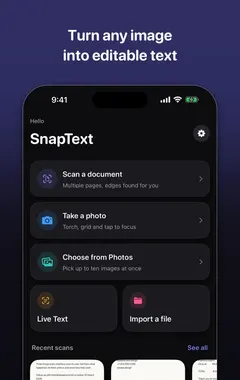
I build SnapText - Image to Text, a free iPhone OCR app that reads text on your device, and the screenshots in this guide come from it. If you want to try each step as you read, get SnapText on the App Store.
What is the difference between cloud and on-device OCR?
| On-device OCR | Cloud OCR | |
|---|---|---|
| Where the image is processed | On your iPhone | On the provider's server |
| Image leaves your phone? | No | Yes |
| Works offline | Yes | No |
| Speed | Fast, no upload | Depends on your connection |
| Privacy depends on | Your device | The provider's storage, retention and security |
Cloud OCR is not automatically bad. Some services are well run and have clear policies. But once an image is uploaded, you are relying on how that provider stores it, how long it keeps it, who can access it, and whether it is used to train models. With on-device OCR, those questions do not arise.
How do I check whether an OCR app uploads my images?
- Read the App Store privacy label. Look at "Data Linked to You" and "Data Used to Track You".
- Check whether it works in Airplane Mode. If OCR still works with no connection, it is running on the device.
- Look for an account requirement. An app that needs you to sign in before scanning is often storing your data on a server.
- Read the privacy policy for words like "upload", "server", "retain" or "improve our services".
- Check the advertising and analytics it uses. Third-party SDKs can collect device data even if the OCR itself is local.
How does SnapText handle privacy?
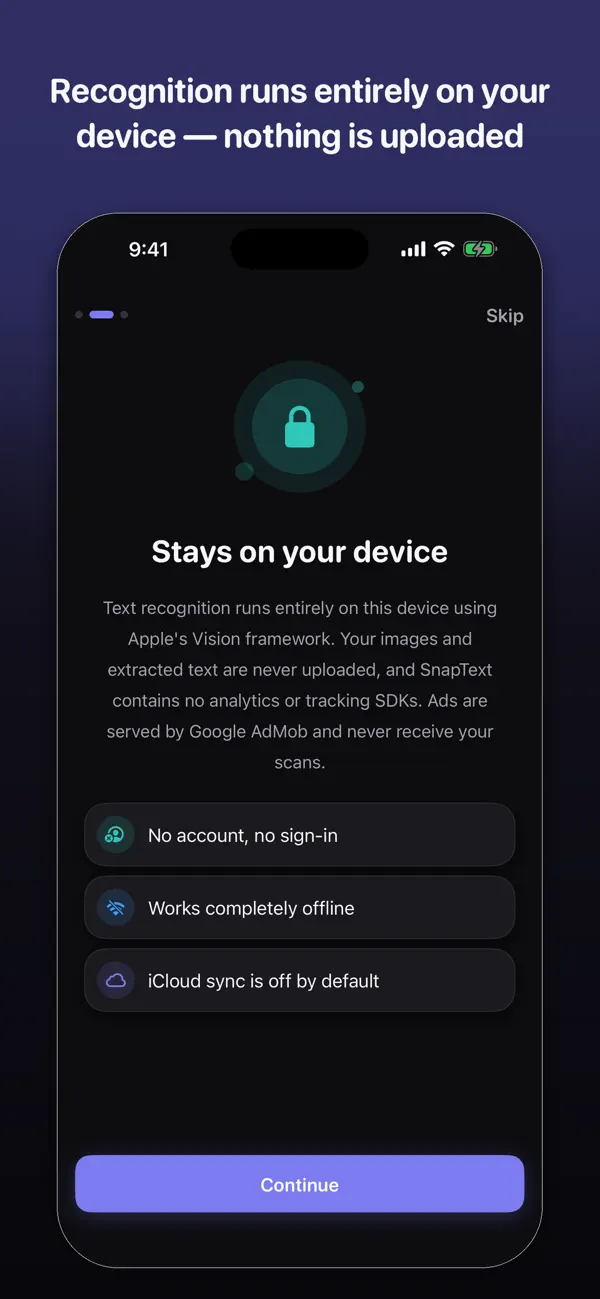
- On-device recognition with Apple's Vision framework.
- No account or authentication.
- No third-party analytics, tracking or advertising SDKs.
- No external OCR or AI services.
- Your images and extracted text stay on your device unless you choose to share or export them.
- Core OCR works offline.
What should I be careful scanning with any app?
- Passports, national ID cards and driving licences.
- Bank statements, cards and cheques.
- Medical records and prescriptions.
- Contracts and legal documents.
- Screenshots of private chats or account details.
For all of these, use on-device OCR, and delete the original image afterwards if you do not need it.
Is on-device OCR as accurate as cloud OCR?
For printed text in common languages, Apple's on-device recognition is very accurate, and it is the same technology behind Live Text across iOS. Accuracy depends more on the photo than on where it is processed. See 10 tips for more accurate OCR.
More guides you may find useful:
- How to Translate Text From an Image on iPhone (Photos, Signs, Menus and Documents)
- How to Convert Handwriting to Text on iPhone (Notes, Letters and Whiteboards)
- OCR for Students: Turn Lecture Slides, Textbooks and Notes Into Text on iPhone
How SnapText helps
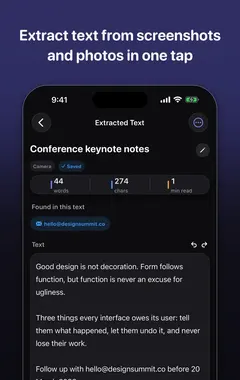
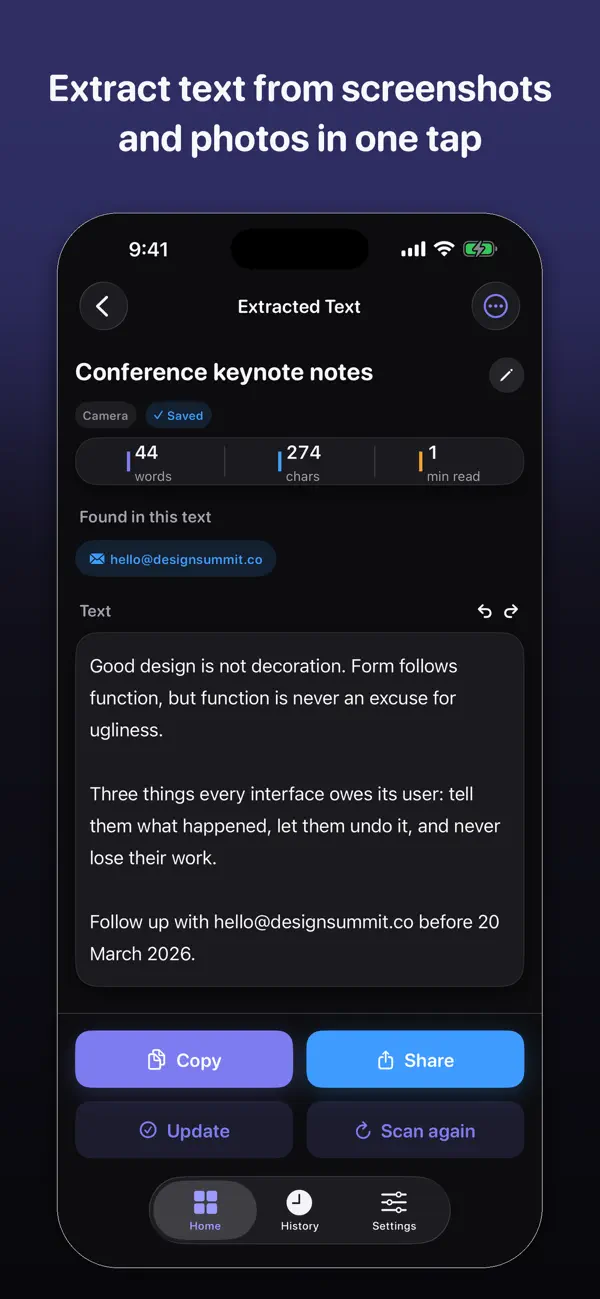
- Extract all the text at once from a photo, screenshot, scanned document or the camera.
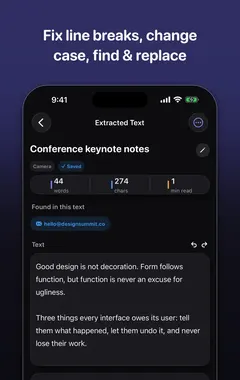
- Edit the result straight away, and clean up line breaks and spacing in one tap.
- Detect links, emails and phone numbers so you can use them directly.
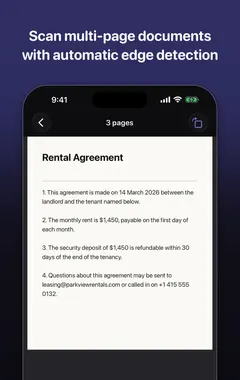
- Scan several pages and keep them together.
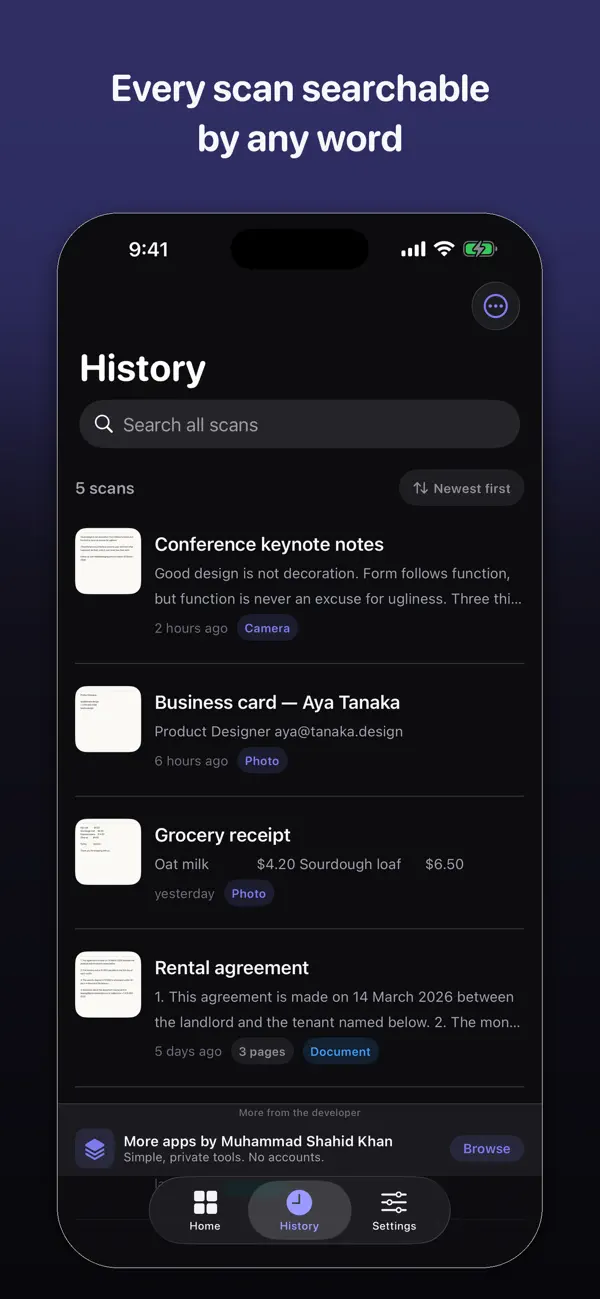
- Search your saved scans later, and copy, share or export the text.
- Private by design: on-device recognition, no account, no tracking, and core OCR works offline.
Download SnapText free on the App Store and turn any image into text you can use.
Frequently asked questions
What is on-device OCR?
Text recognition that runs on your phone itself, so the image does not need to be uploaded to a server.
Do OCR apps upload my photos?
Some do. Cloud-based OCR apps send images to a server for processing. Check the privacy label and policy, or test the app in Airplane Mode.
Does SnapText upload my images?
No. SnapText recognises text on your device using Apple’s Vision framework and does not use external OCR or AI services.
How can I tell if an OCR app works offline?
Turn on Airplane Mode and try it. If it still extracts text, recognition is happening on your device.
Is it safe to scan my passport with an OCR app?
Use an app that processes images on your device and does not require an account. Delete the image afterwards if you do not need it.
Is on-device OCR accurate?
Yes, for clear printed text. Apple’s Vision framework powers Live Text across iOS. Image quality matters more than where the processing happens.
Does SnapText have ads or tracking?
SnapText does not use third-party analytics, tracking or advertising SDKs.
Do I need an account to use SnapText?
No. No account or authentication is required.
Where are my SnapText scans stored?
On your iPhone. They stay on your device unless you choose to share or export them.
What is Apple’s Vision framework?
Apple’s on-device computer vision technology, which includes text recognition. It runs on the iPhone’s own hardware.
SnapTextDownload free