 SnapText guide
How to Translate Text From an Image on iPhone (Photos, Signs, Menus and Documents)
By Muhammad Shahid Khan · · 4 min read
Quick answer
On iPhone, open the photo, tap the Live Text button, select the text and tap Translate. For signs and menus, use the Camera tab in Apple’s Translate app. For long documents, extract the text first with an OCR app such as SnapText, then paste it into a translator, so you can check and edit the whole thing.
SnapTextScan Images, Extract Text · Free on the App StoreDownload free →| Quick phrase | Photos > Live Text > Translate |
|---|---|
| Signs and menus | Translate app > Camera |
| Long documents | Extract text with OCR, then translate |
| Offline | Download languages for on-device translation |
| Needs | iPhone XS or newer for Live Text |
Whether it is a street sign abroad, a menu, a letter in another language or a screenshot from a group chat, your iPhone can translate it without retyping a word. Which method is best depends on how much text there is and what you want to do with the translation.
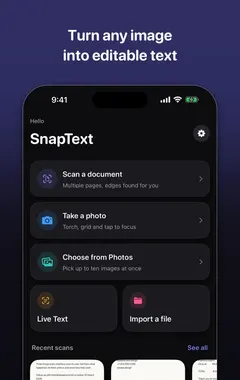
I build SnapText - Image to Text, a free iPhone OCR app that reads text on your device, and the screenshots in this guide come from it. If you want to try each step as you read, get SnapText on the App Store.
Method 1: Live Text Translate in Photos
- Open the photo or screenshot in Photos.
- Tap the Live Text button (lines inside a frame).
- Tap Translate at the bottom, or select some text and choose Translate from the menu.
Best for a few lines. It needs an iPhone XS or newer, and supports a limited set of languages. If the button does not appear, see Live Text not working.
Method 2: the Translate app camera
Open Apple's Translate app, tap Camera, and point it at a sign or menu. Translations appear over the text. You can pause the image to read it properly, or import a photo. This is the quickest option when you are out and about.
Method 3: extract the text, then translate
For anything longer than a few lines, such as a letter, a contract, a recipe or a page of a textbook, it is better to get the text first:
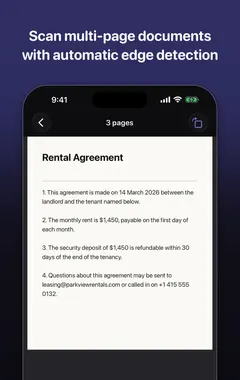
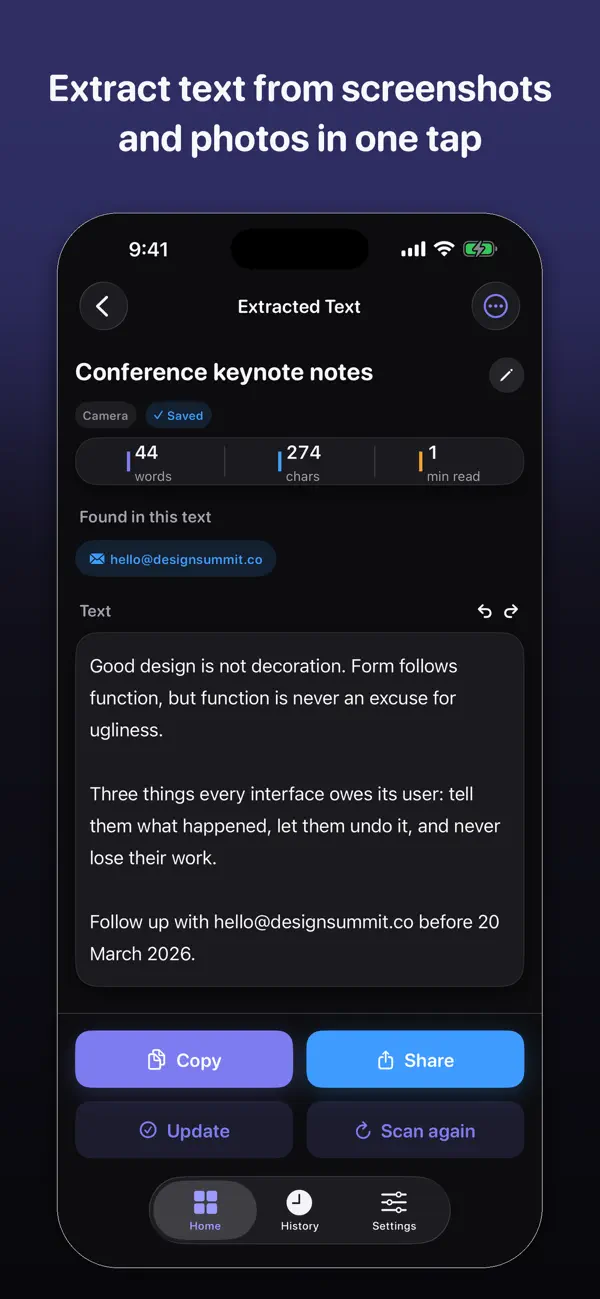
- Open SnapText and take a photo, import a screenshot or scan the page.
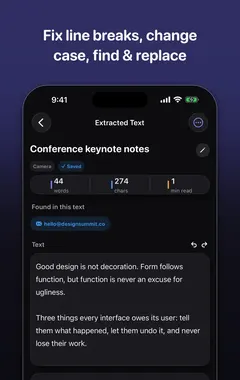
- Check the extracted text and fix any misread words, especially names and numbers.
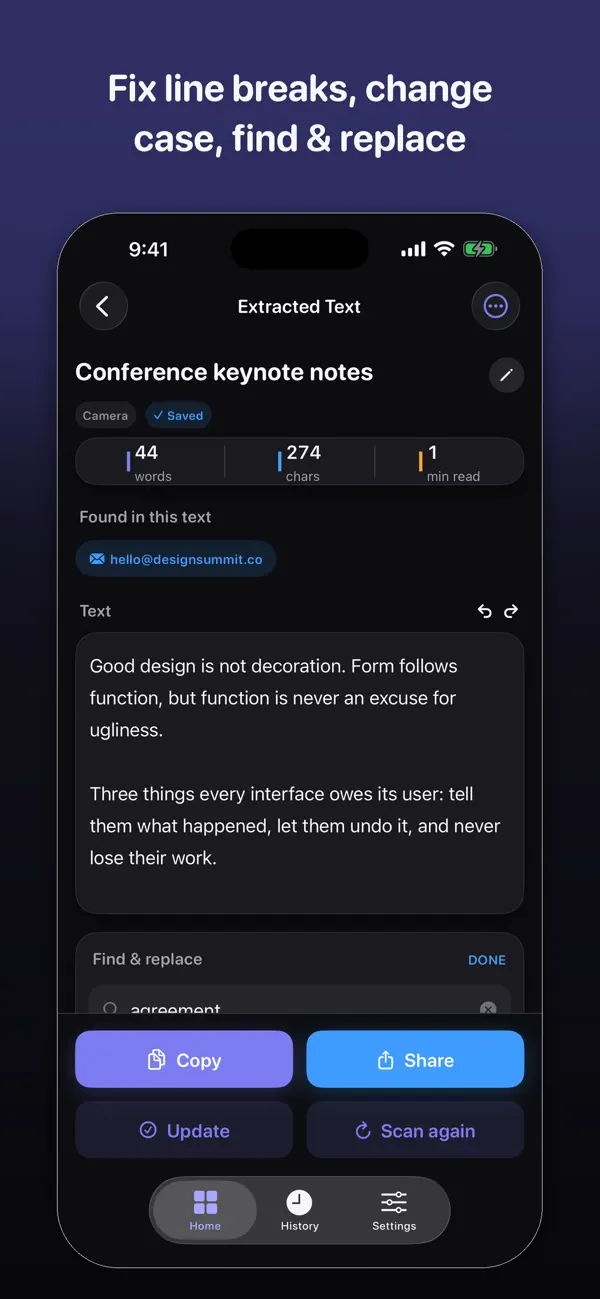
- Clean up line breaks so the translator sees full sentences. See how to remove line breaks.
- Copy or share the text into Apple Translate, or any translator you trust.
This gives better translations, because translators work on whole sentences, and you keep both the original and the translation as text.
Which method should I use?
| Situation | Best method |
|---|---|
| A sign, a menu, a label | Translate app camera |
| One or two lines in a photo or screenshot | Live Text Translate |
| A full page, letter or document | Extract with SnapText, then translate |
| Several screenshots of a chat | Extract each, then translate together |
Can I translate images offline and privately?
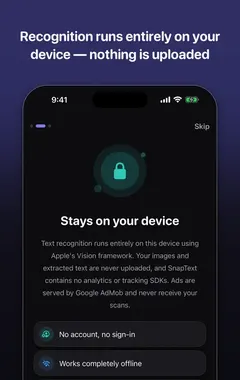
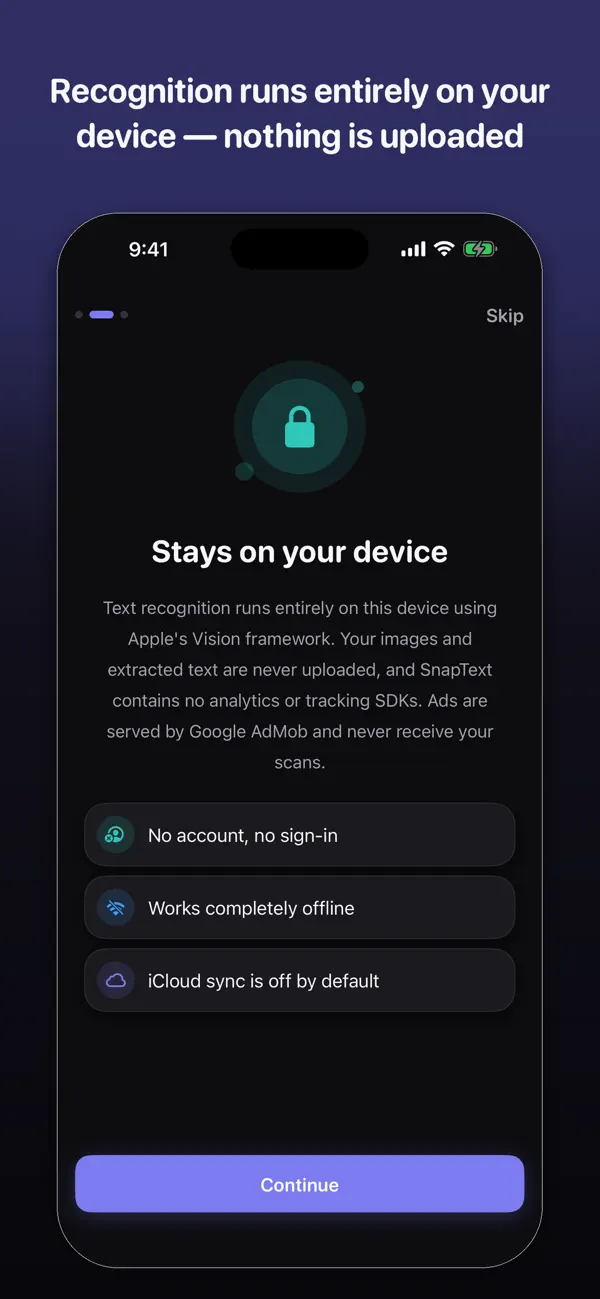
Yes. In the Translate app you can download languages for on-device translation, so nothing is sent to a server. SnapText's text recognition also runs on your iPhone. Cloud translators can be more fluent for some language pairs, but think twice before sending private letters, medical documents or ID to an online service. More in private OCR on iPhone.
Tips for better image translations
- Get a sharp photo with even light. Misread words become mistranslations.
- Translate full sentences, not single words, for the right meaning.
- Check numbers, dates and amounts against the original. They are where errors cost the most.
- For official documents, use a certified translator. Machine translation is for understanding, not for legal use.
How SnapText helps
- Extract all the text at once from a photo, screenshot, scanned document or the camera.
- Edit the result straight away, and clean up line breaks and spacing in one tap.
- Detect links, emails and phone numbers so you can use them directly.
- Scan several pages and keep them together.
- Search your saved scans later, and copy, share or export the text.
- Private by design: on-device recognition, no account, no tracking, and core OCR works offline.
Download SnapText free on the App Store and turn any image into text you can use.
Frequently asked questions
How do I translate text in a photo on iPhone?
Open the photo, tap the Live Text button, then tap Translate. Or use the Camera tab in Apple’s Translate app.
Can I translate a screenshot on iPhone?
Yes. Open it in Photos, tap Live Text and choose Translate, or extract the text with an OCR app and paste it into a translator.
How do I translate a sign or menu with my iPhone camera?
Open the Translate app, tap Camera and point it at the text. The translation appears over the image.
How do I translate a whole document from a photo?
Extract the text with an OCR app such as SnapText, tidy the line breaks, then paste it into a translator.
Can I translate images offline on iPhone?
Yes. Download languages in the Translate app for on-device translation.
Why is the Translate option missing in Live Text?
Your iPhone or iOS version may not support it, the language may not be supported, or the text was not recognised.
Is translating images on iPhone private?
Apple’s on-device translation and Live Text run on the iPhone. Online translators send text to a server.
Which iPhones support Live Text Translate?
iPhone XS, XR and newer, on a recent version of iOS.
Why is my image translation wrong?
Usually because the text was misread or translated in fragments. Use a sharper photo and translate full sentences.
Does SnapText translate text?
SnapText extracts the text on your iPhone. You then copy or share it into Apple Translate or another translator.
Can I use machine translation for official documents?
Use it to understand the document, but get a certified translation for legal or official use.
SnapTextDownload free